
Team portal For merchants
Where you and your staff run the business.
Design visuals, build orders, raise purchase orders, and manage customers, factories, products, freight and payments. Everyone signs in with their own login, sees only the sections they've been given, and every action is recorded by name.
Signing in
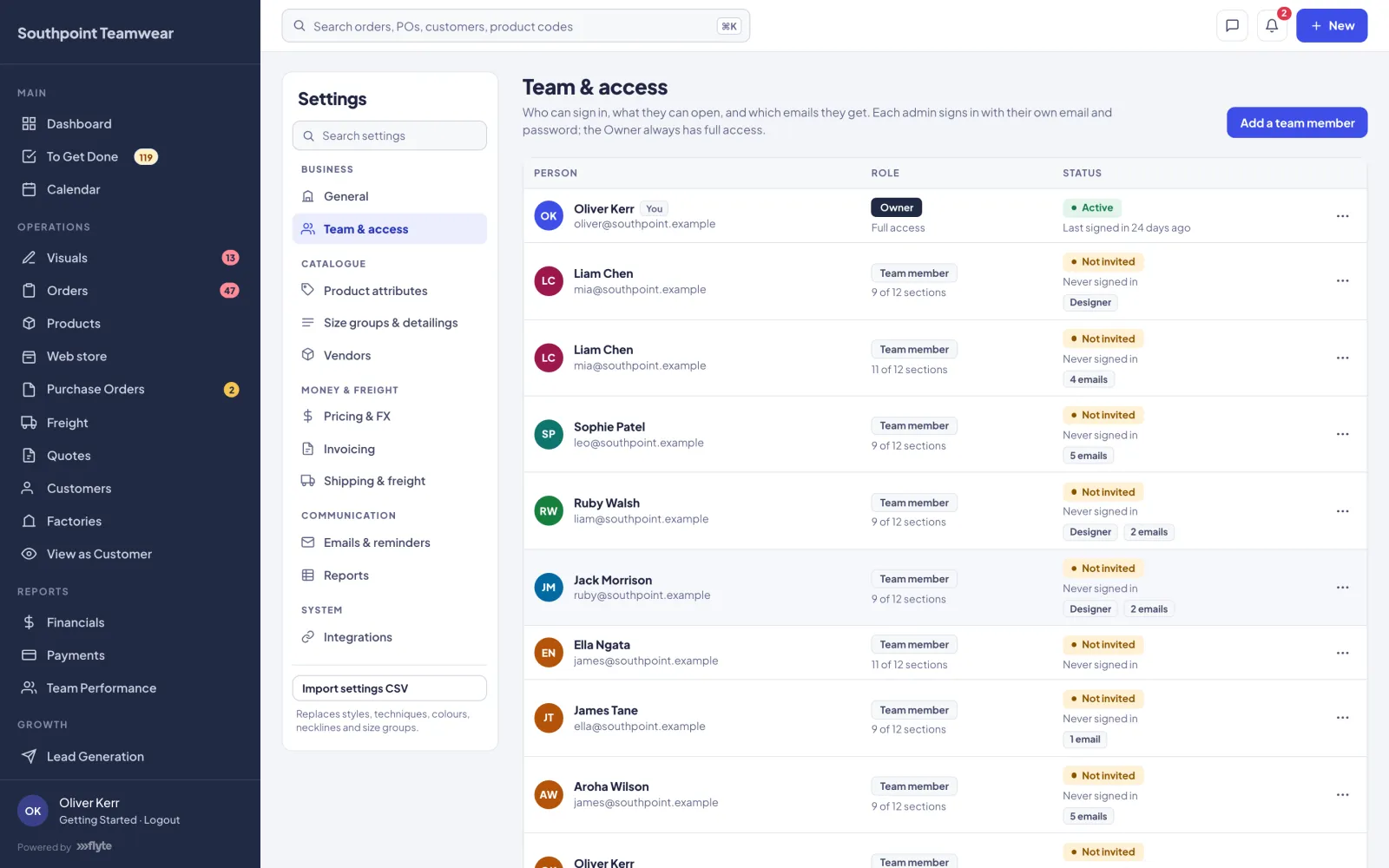
Nobody shares a login. Someone on your team with the power to manage the team adds you in Settings → Team & access and sends you an invite with a one-time link to set your password. It's valid for 7 days. The first time you sign in, a short Getting Started tour runs, showing only the areas you have access to, and you can replay it from under your name at any time.
Your team signs in at your company's own Flyte address. Your customers sign in to their portal there too, under your brand; your factories use the shared factory portal.
Dashboard
The first page after sign-in, and almost everything on it clicks through to a list that's already filtered.
- Headline cards: visuals with customers (and how many have waited over 5 days), orders to check, POs past due and unread messages
- Production pipeline: open POs as a coloured bar by stage, plus how many are on hold
- The top waiting items, the latest factory conversations and the orders in production
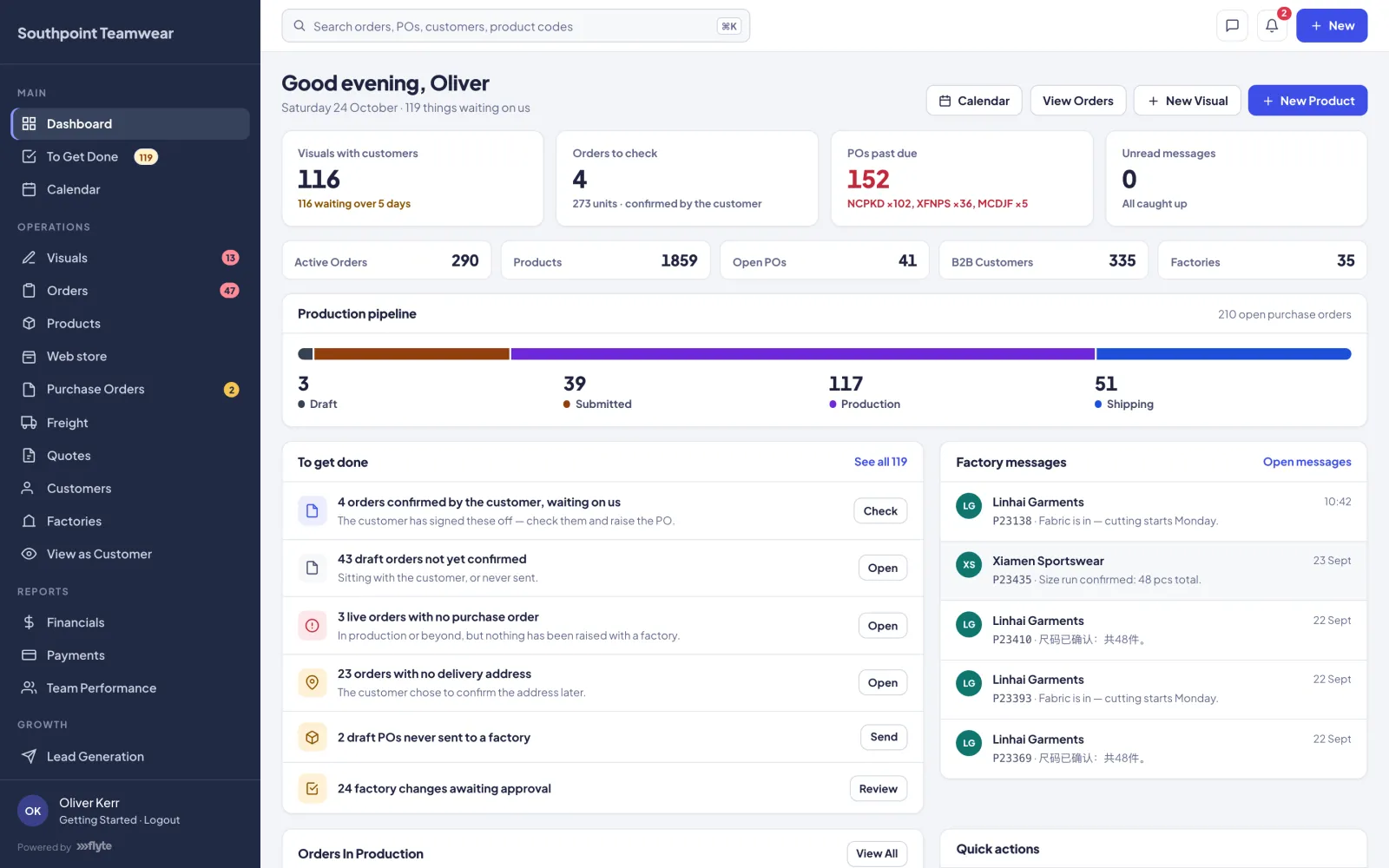
On every page, the top bar has Search (⌘K or Ctrl+K) to jump straight to an order, PO, customer, product, visual or factory; the Messages drawer; the Notifications bell; and a New menu for new orders, visuals, products, POs, customers, quotes and team messages. Orders, visuals and customers open as full-page workspaces, each with its own shareable link.
To Get Done
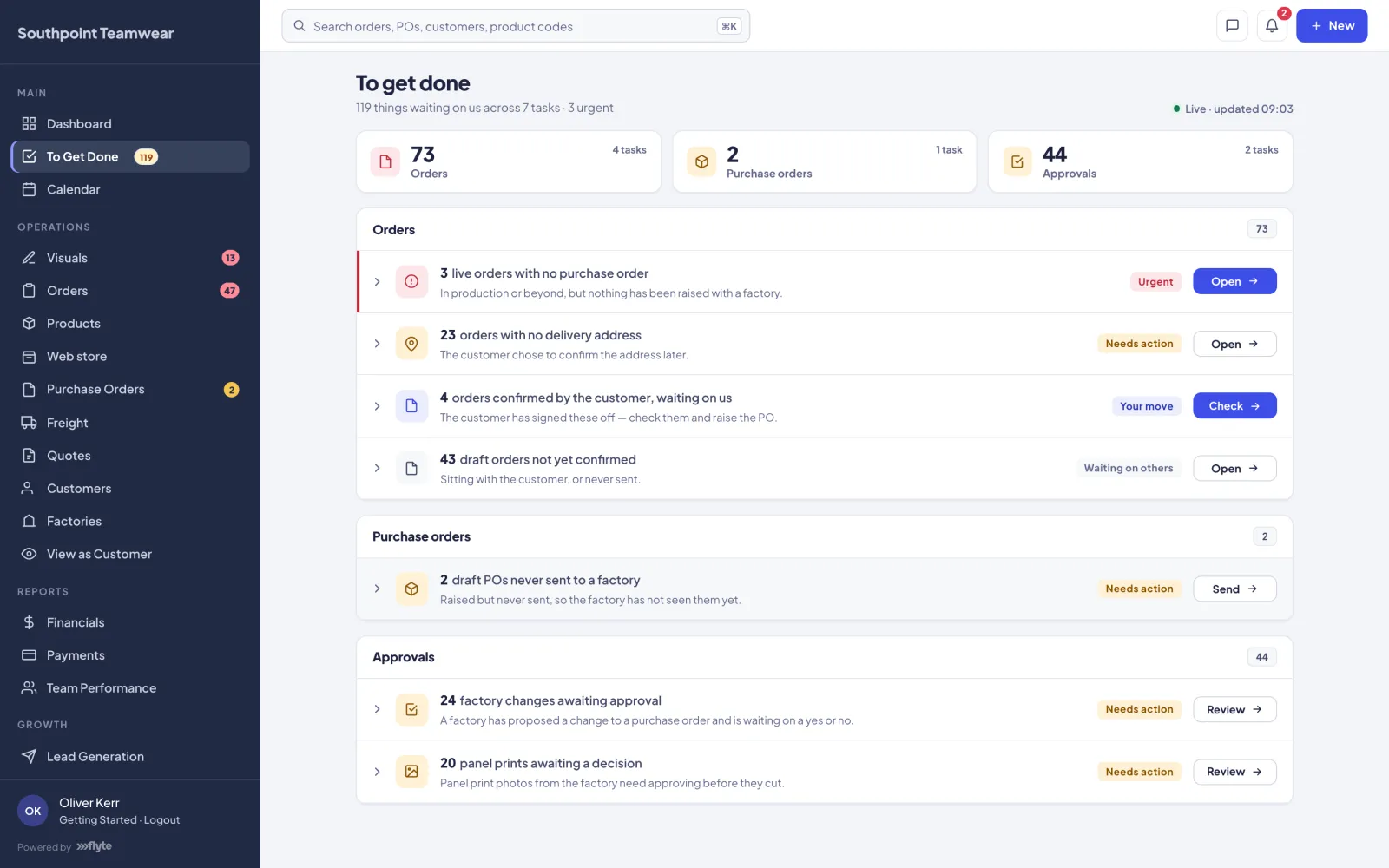
One live list of everything waiting on your team: orders confirmed by the customer and waiting for you, drafts not yet confirmed, live orders with no purchase order, orders missing a delivery address, draft POs never sent, and factory changes awaiting approval. Each line has the button that does the job.
Calendar
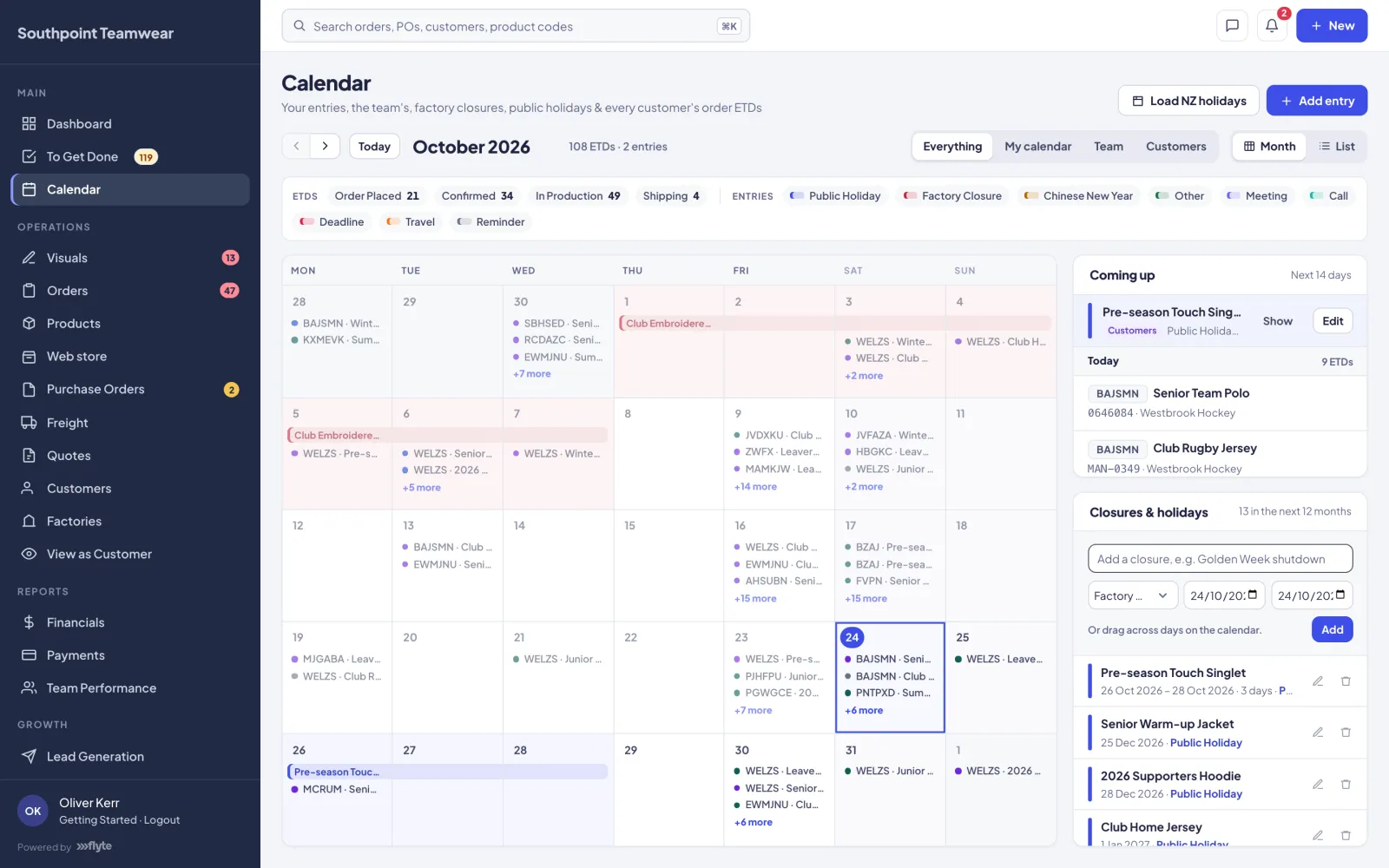
Your entries, the team's, factory closures, public holidays and every order's ETD on one calendar, with what's coming up in the next fortnight. You control who sees each entry, and can set reminders on orders, POs and shipments so nothing is forgotten.
Messages
Every conversation in one drawer that opens over whatever page you're on, split into Orders & POs, Team, Support and Requests. An order's conversation is between your team and the customer; a PO's conversation is between your team and the factory. Attach files, use saved replies, and use Requests to ask a factory whether it can meet a date before you commit to the customer.
If your account has translation switched on, PO messages with factories are translated between Chinese and English automatically.
Visuals
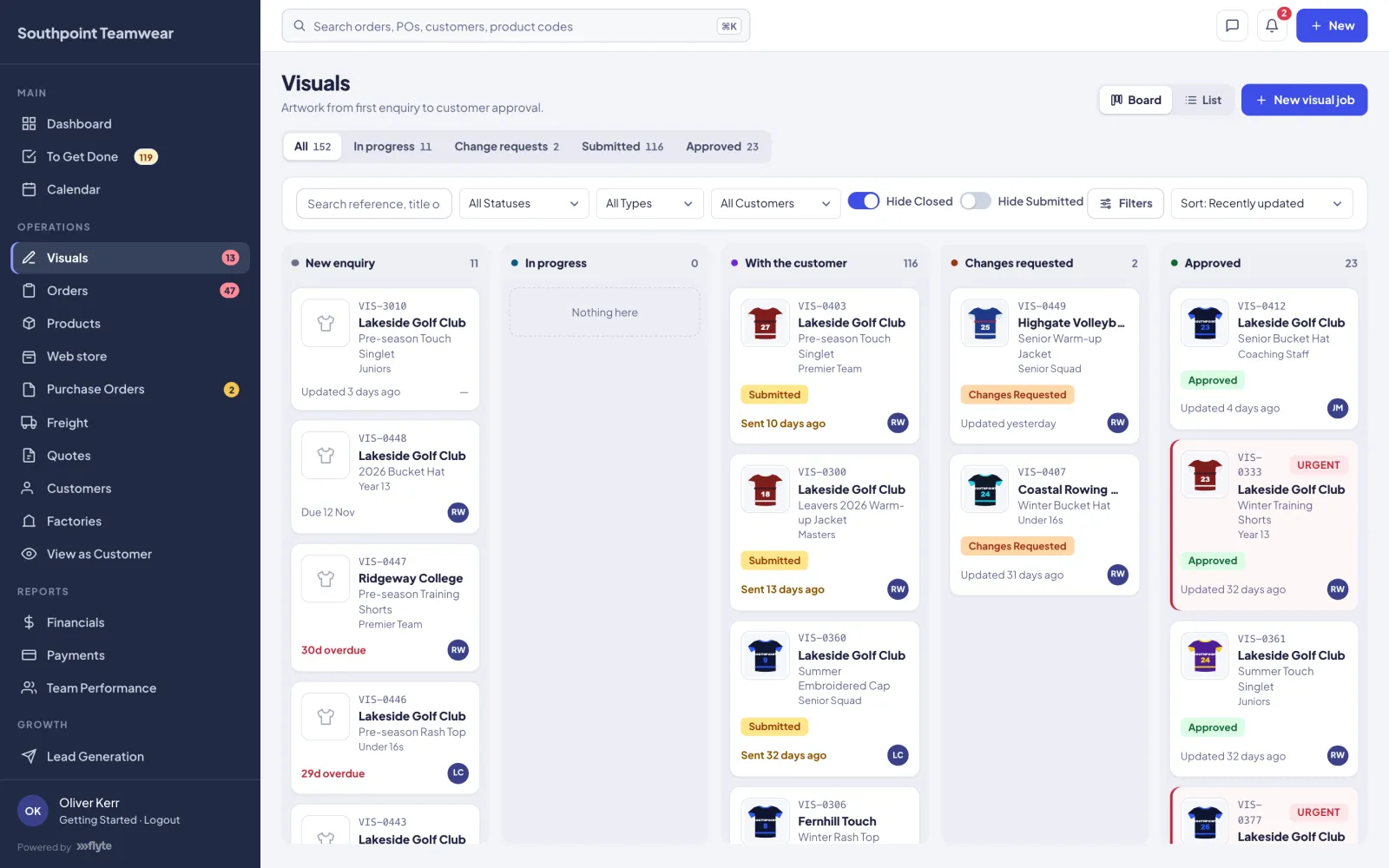
Enquiries and designs, from first enquiry to customer approval, as a board or a list. A visual job carries one or more products, each with front and back renders, logo placements, detailings and names and numbers. Designers mark each product done, then Send for Approval; the customer decides product by product, and anything approved with an order becomes a draft order automatically.
Quotes
Price a job for an existing customer or a new lead, set its validity, tax and terms, and add styles with quantity breaks. The customer opens the quote online, chooses their break and accepts or declines. An accepted quote turns into a customer record, products and an order.
Orders
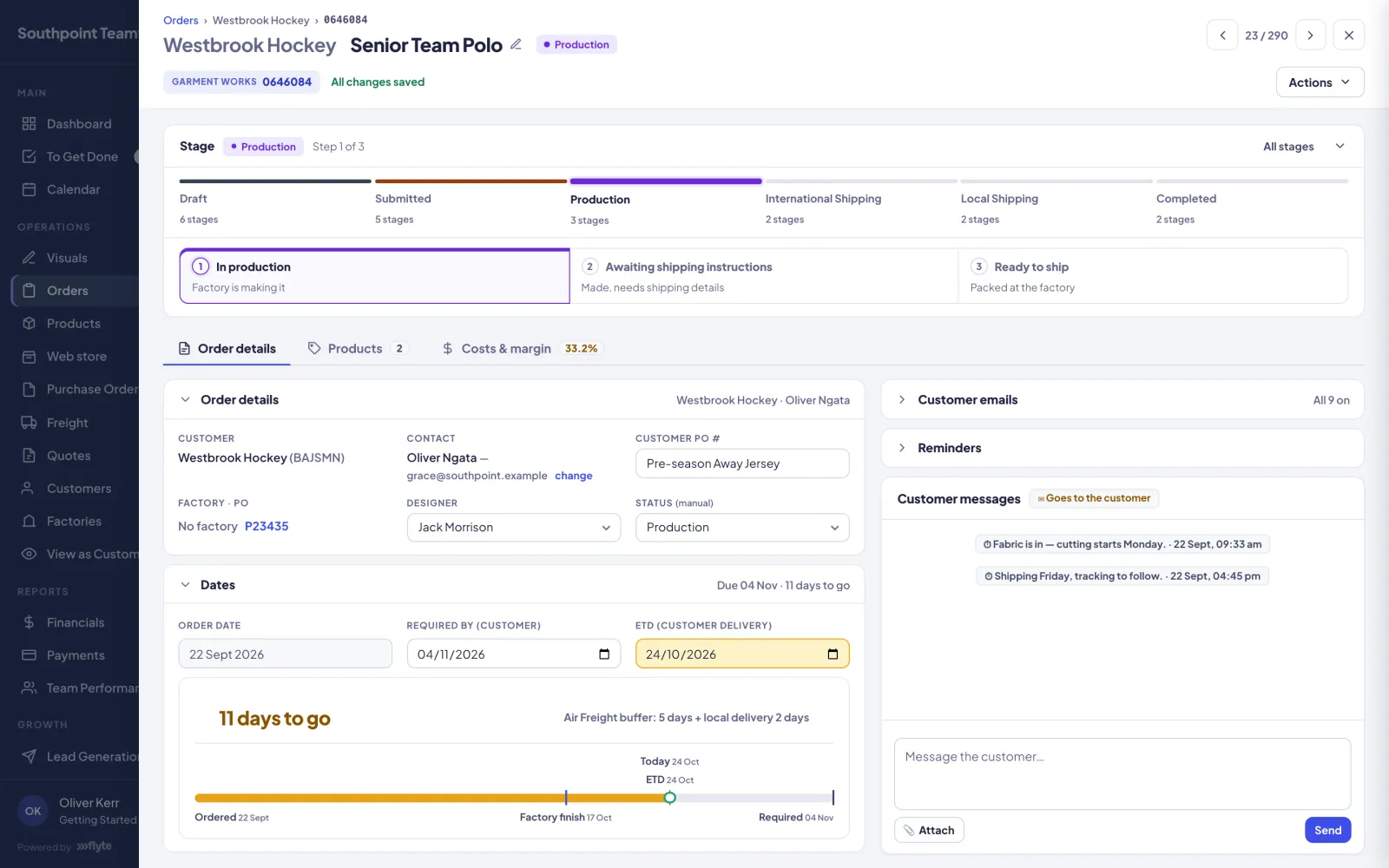
Every customer order, from Draft to Closed, with stage counters across the top. The order workspace holds the details, dates and urgency, delivery, products priced from your quantity breaks (with set prices and per-line discounts where you need them), names and numbers, the artwork PDF, the approvals timeline, and the conversation with the customer.
- Customer confirmation collects their PO number, freight, address and required-by date
- An order can't be confirmed without an ETD
- Put on hold, split an order or a delivery, merge drafts
- Switch individual customer emails off for one order
Purchase Orders
Tick confirmed orders and press Create PO from selected: Flyte creates one PO per factory, priced from buy prices, with ETDs filled in. Choose whether the factory ships to your warehouse or direct to your customer, edit quantities and prices, add custom lines for one-off charges, hold or split a PO, and follow production through every status. When the PO moves, its orders move with it.
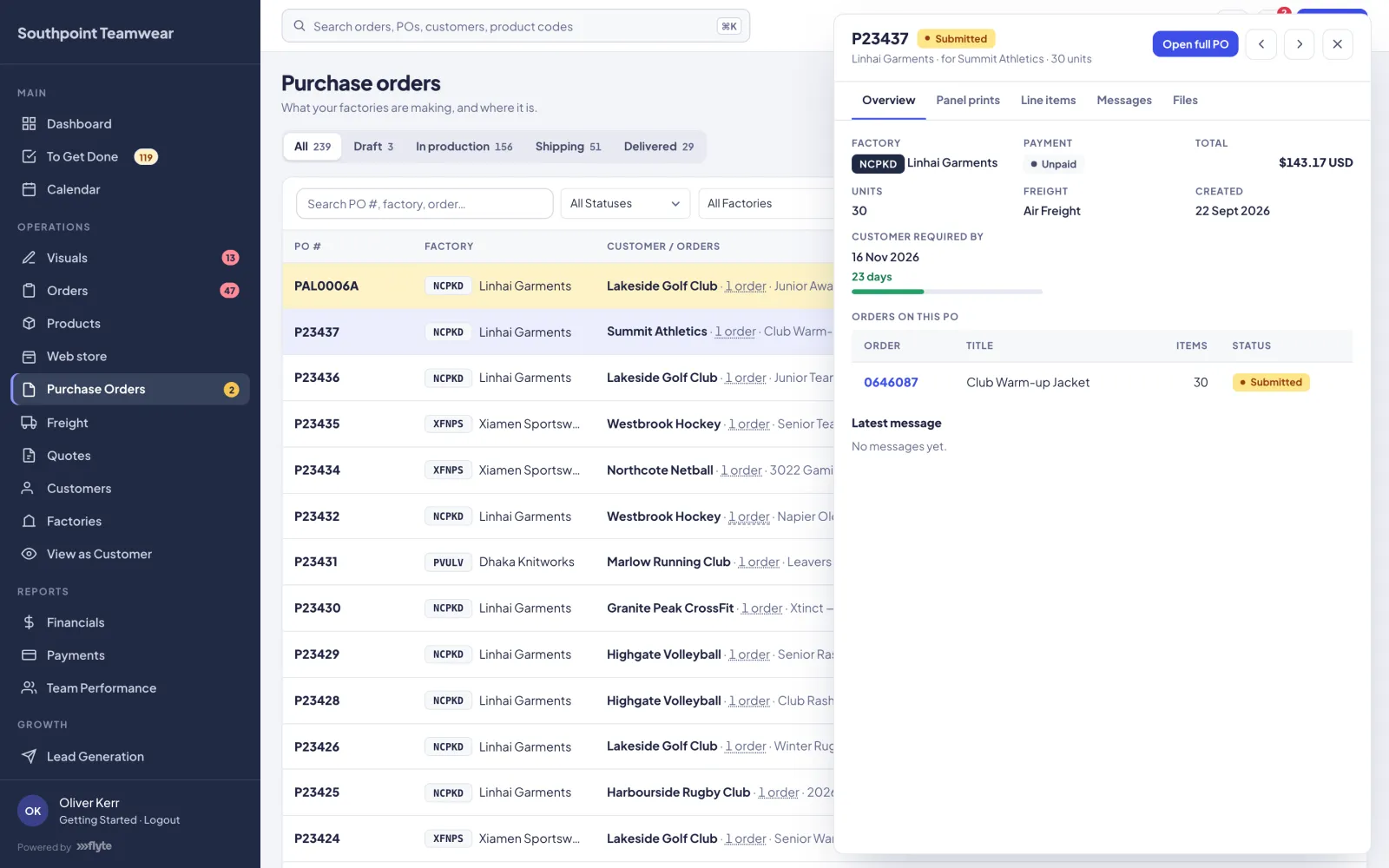
A factory doesn't have to be on the factory portal. A factory without a login can be sent POs by email, and your team moves its POs on by hand.
Approvals
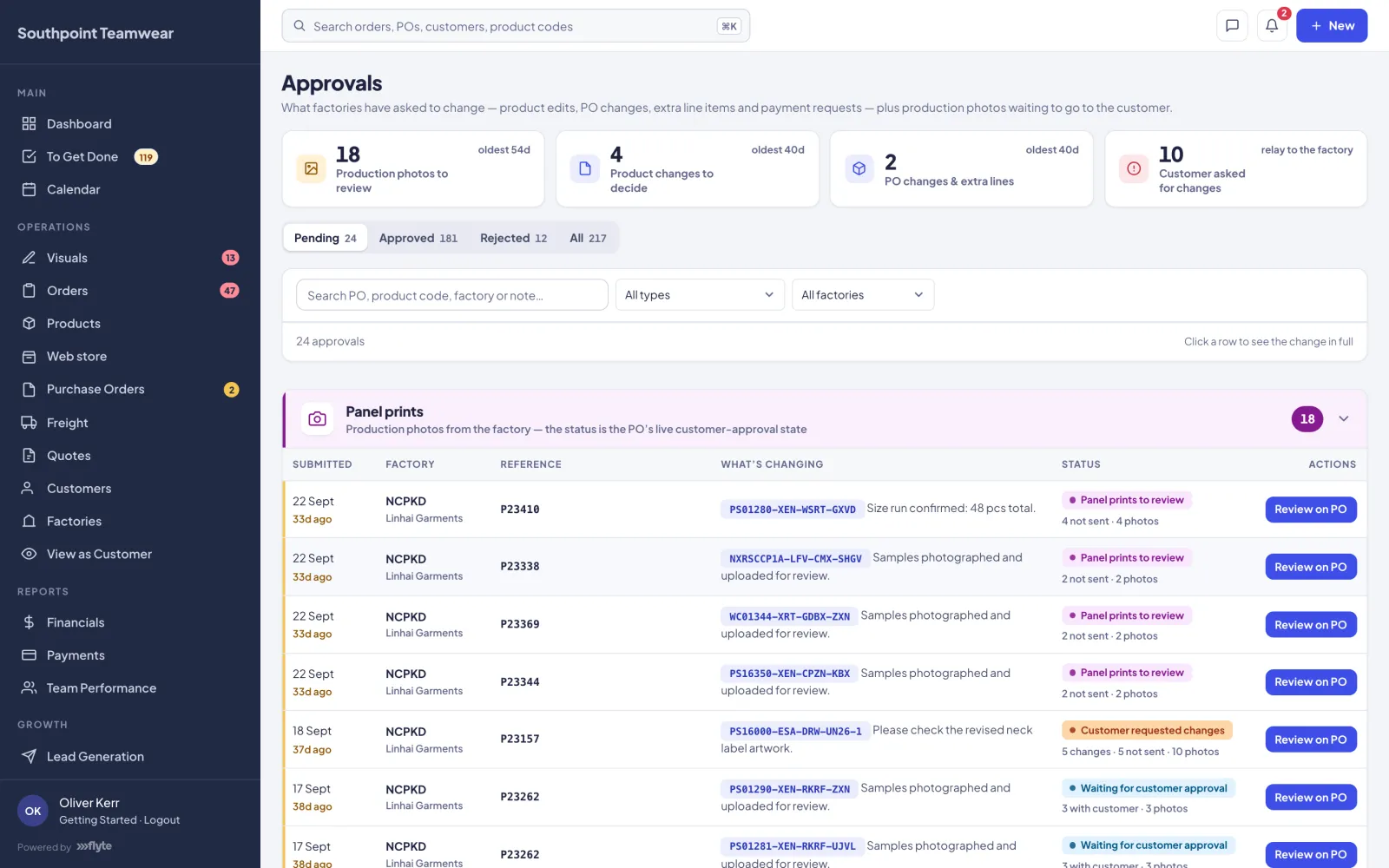
Everything a factory asks you to decide, in one place: production photos to review and send to the customer, product and price changes, PO change requests, extra charges, and payment requests. Nothing a factory proposes takes effect until you approve it.
Products
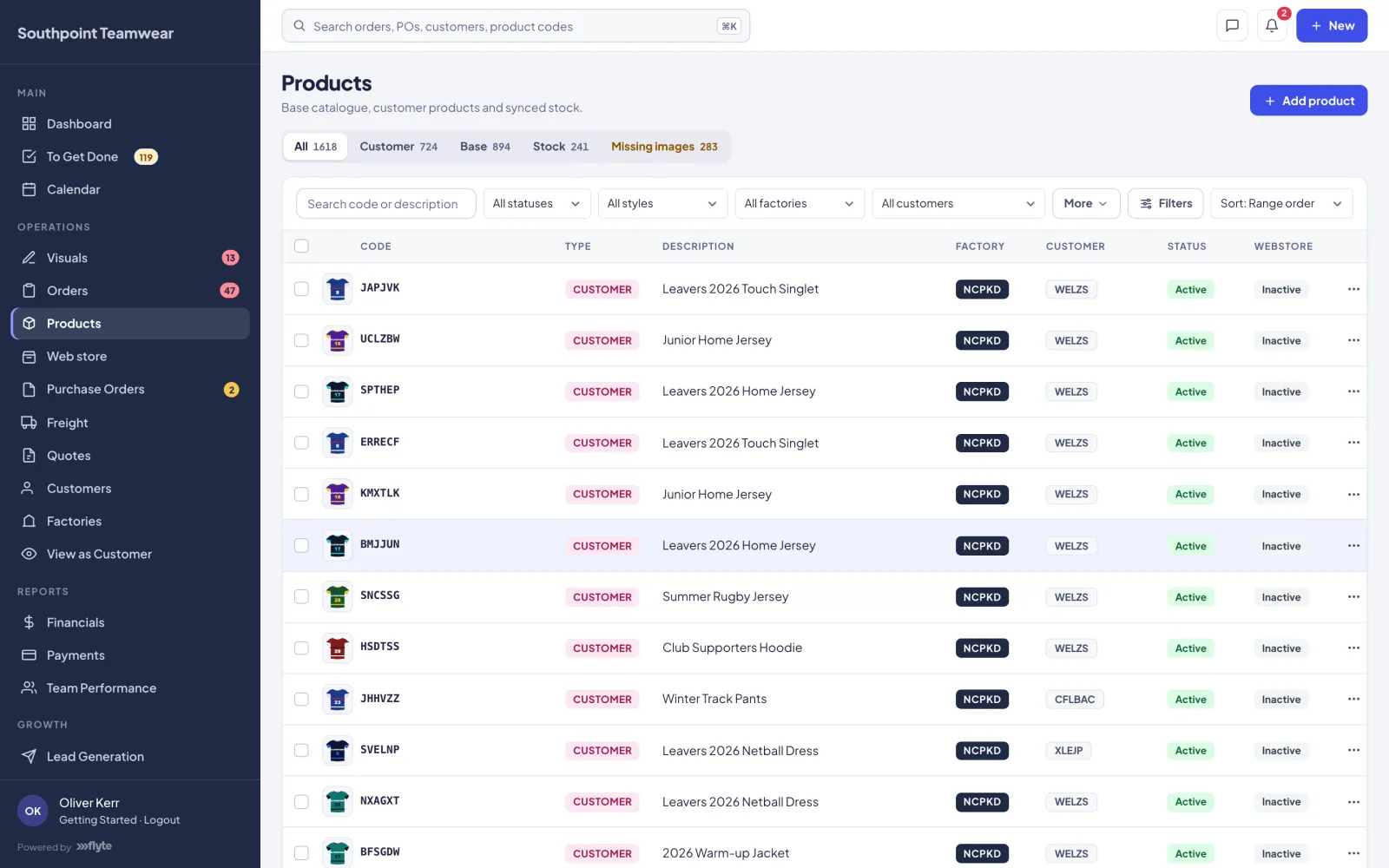
Three kinds of product: base products (blank garments with their factory, sizes and buy prices), customer products (a decorated version for one customer, linked to its base or priced on its own), and stock products synced from your vendors. Set quantity-break tiers for buy and sell prices, mark-ups and exchange rates, size groups and size charts, MOQs and lead times, detailings, images and files, and price on enquiry for products you quote job by job.
Customers
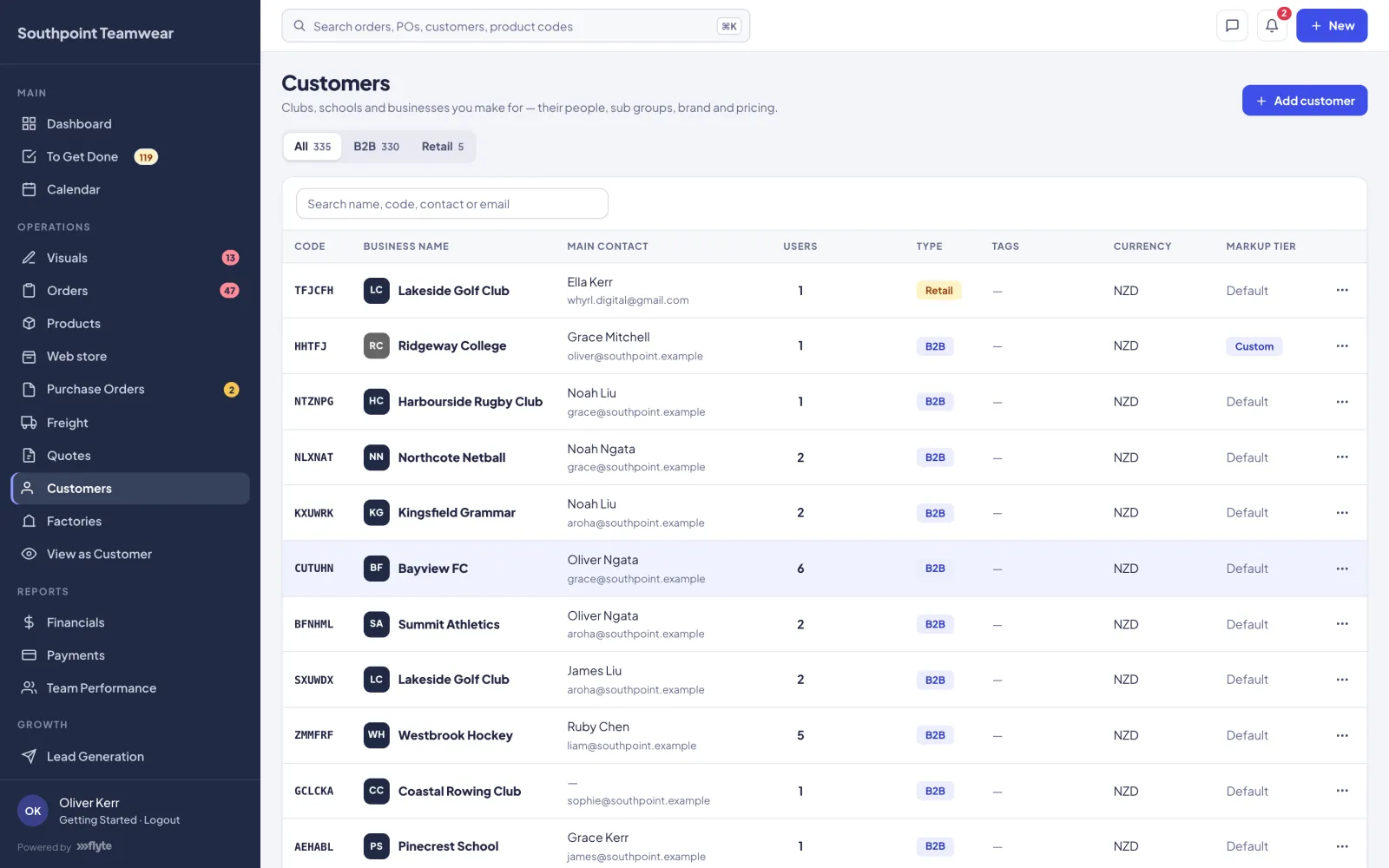
Customer companies with their code, type, currency and mark-up; up to five saved addresses; the people at each customer and their portal access; sub groups for each club, school or team, with a reusable logo library; each customer's own logo and brand colour for the emails and pages they forward; and their detailings library.
Factories
The factories you buy from: their currency, the people who receive purchase orders, their fabric library, and their products and POs. Invite a factory's people to the factory portal and they accept POs, report production and ship online, in English or Chinese.
Freight
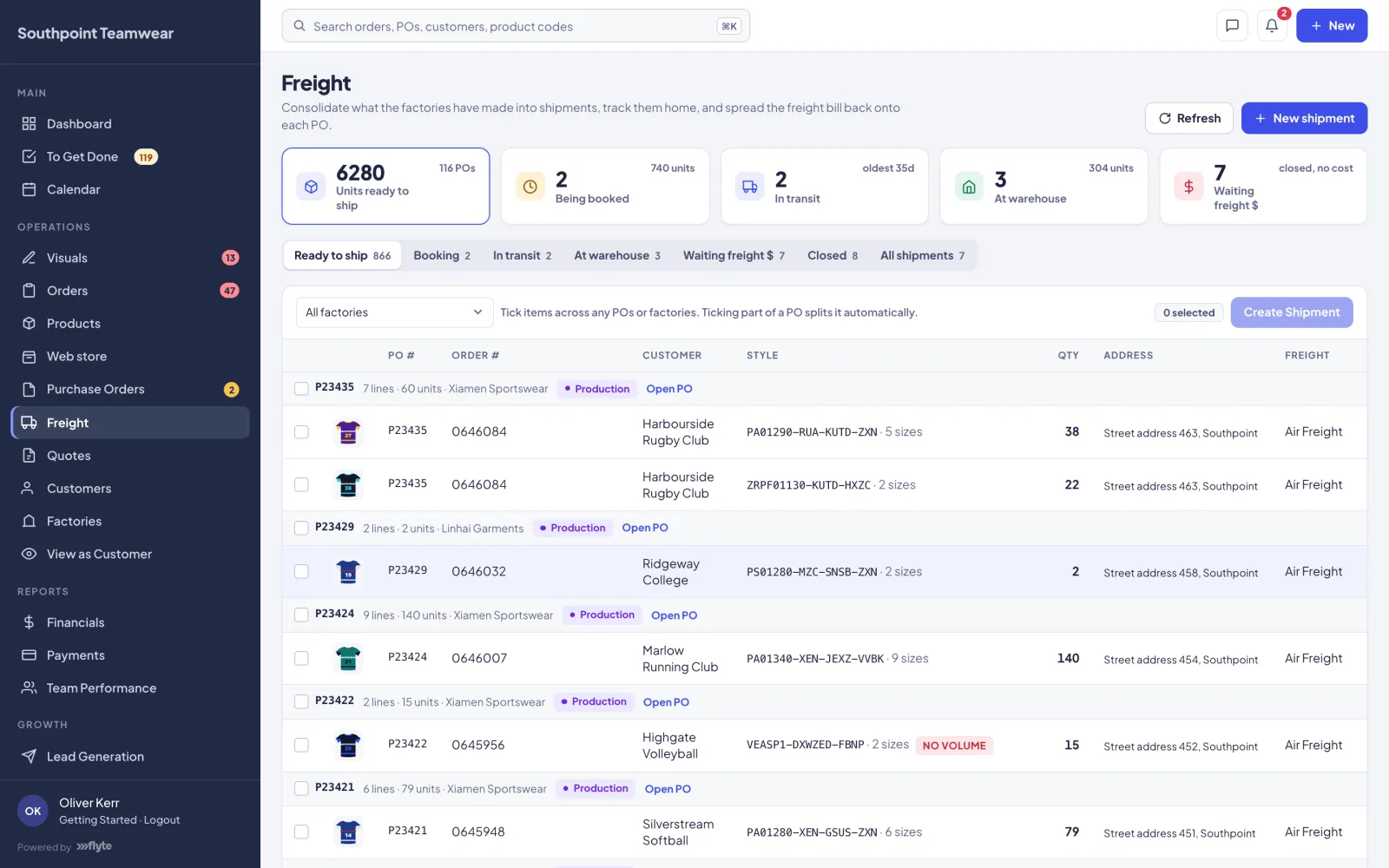
What's ready to ship, shipments being booked, in transit and at your warehouse. Build a shipment from lines across POs and factories, handle mixed freight methods and addresses, record carrier and tracking, and mark Ship now — left factory and Received at Warehouse. Record the freight, duty and other bills as landed costs and spread them across the lines, so margins reflect what goods really cost.
View as Customer
See the customer portal exactly as one specific person sees it, read-only, without their password. It's the quickest way to answer "I can't see my order". Each viewing session is recorded, and nothing you click can change their account.
Financials & payments
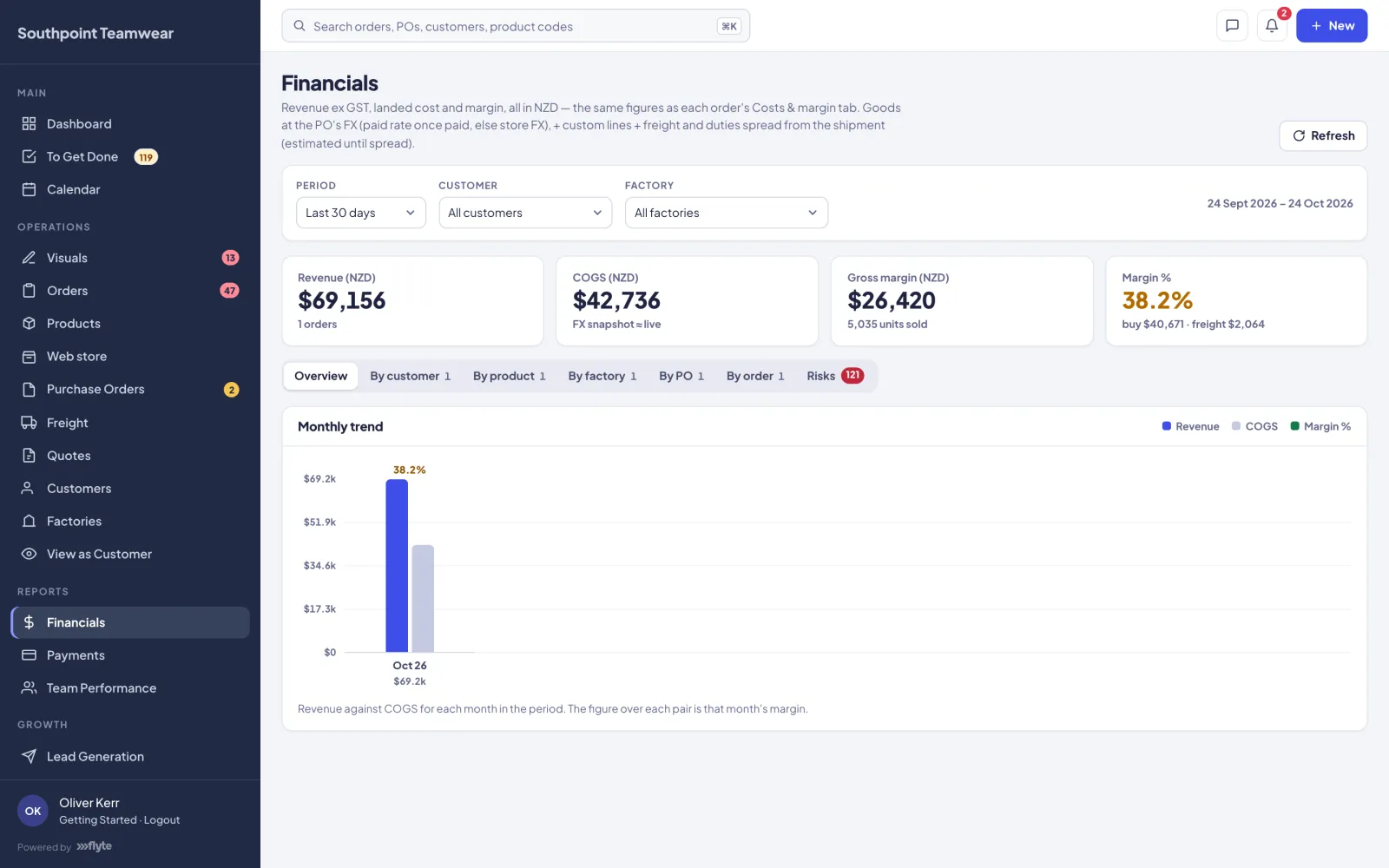
Financials shows revenue, cost of goods and margin by customer, product, factory, PO and order, with each PO converted at the best rate available: the rate you actually paid, or the rate when it was submitted. A Risks tab finds orders and POs that need attention. Payments groups POs into payments to factories, with deposits, balances and their real exchange rates.
If your account has invoicing switched on, you can also invoice customers from their orders, with GST, payment terms, deposits and credit notes, and card payments from the invoice link.
Team Performance
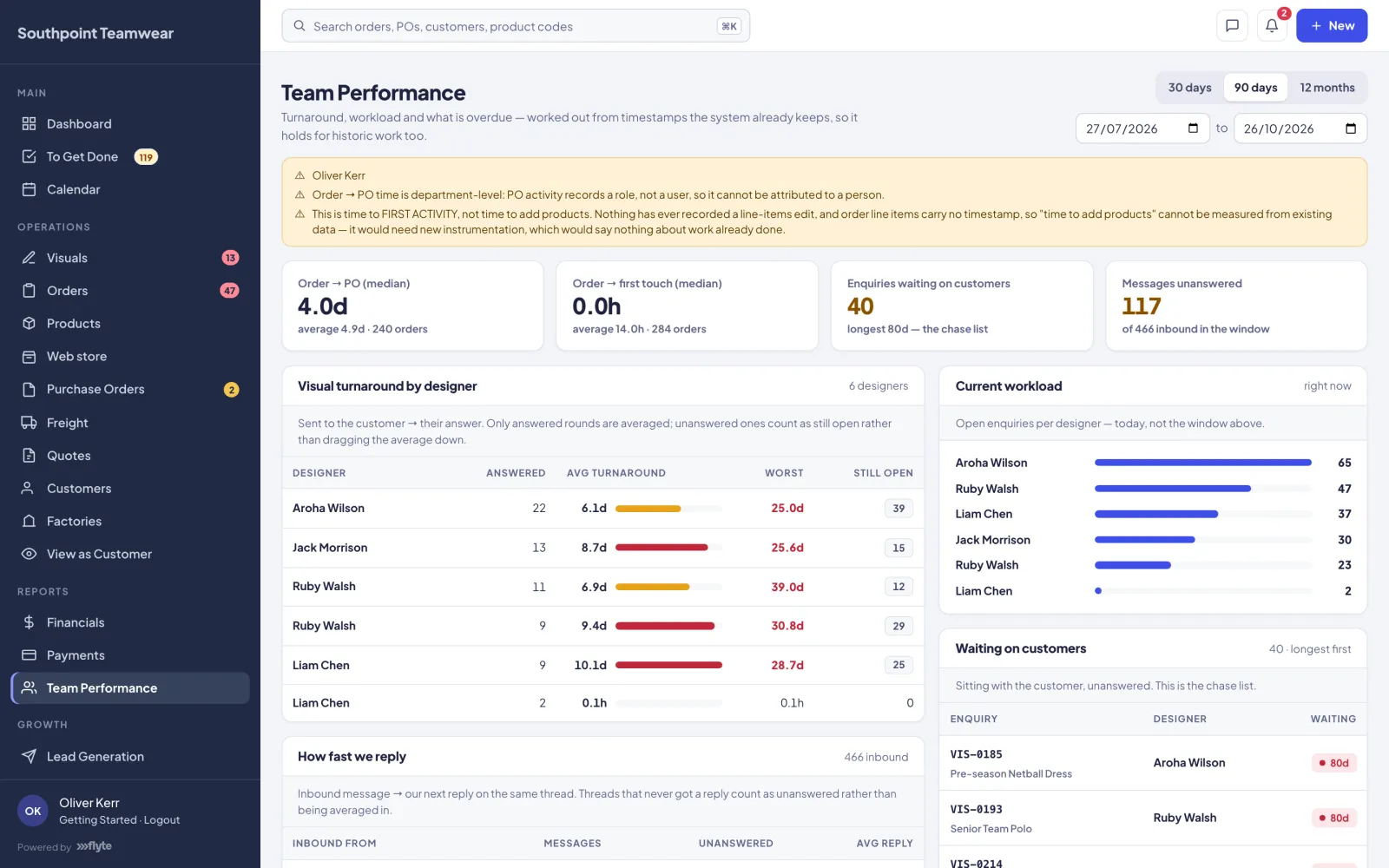
Turnaround times, workload and reply speed across your team, worked out from the dates Flyte already records. Nobody fills in a timesheet.
Lead Generation
Personalised outreach to prospects from reusable templates, with a personal opener for each person and your base products inserted as cards. Track sends, replies and clicks, and convert interested leads into customers.
Settings & team access
Company details, logo, brand colour and warehouse address; size groups and shared detailings; pricing, exchange rates and freight methods; every email Flyte sends and its wording; follow-up reminders; the weekly production schedule for customers; and integrations.
Access is built from sections, which open pages, and powers, which allow actions such as editing settings or managing the team. Financial figures are protected on the server, not just hidden from the menu.
Graveyard
Most things you delete aren't gone. Orders, products, POs, customers and factories go to the Graveyard, where they're kept until you restore them or delete them permanently. Permanent deletion asks you to type the item's name first.
Every screen, explained.
The Knowledge Base has a step-by-step guide for each area of the team portal.