
How it works
The journey of a job, enquiry to delivery.
Every job in Flyte follows the same path. Understand this page and almost every screen in Flyte makes sense: who acts at each stage, what moves on its own, and what the customer and the factory see.
Hold on to this first
There are usually three parties in a job, not two.
You, your customer, and your customer's customer. Your customer is often a reseller, such as a club or uniform supplier; the people who will wear the garments are their customers. Most "why does it work like this?" questions are answered by asking which of the three a screen or email is talking to.
Their customer can approve
Your customer's customer can approve a design and enter sizes and quantities, on a page that shows no prices.
Only your customer commits money
So the order always comes back to your customer to confirm, with their PO number, freight, address and date.
Everything is forwardable
Emails and approval pages carry your customer's logo and colours, so they can send them straight on.
Stage by stage
Fourteen stages, one record.
-
1
The enquiry goes in Customeror your team
Your customer adds products to the Locker Room, the basket in their portal, and submits; or your team starts a New visual job after an email or a call. Either way it becomes a visual job with a reference such as VIS-0123. A customer who presses Request a price on a price-on-enquiry product arrives the same way, flagged Price requested, ready to turn into a quote.
-
2
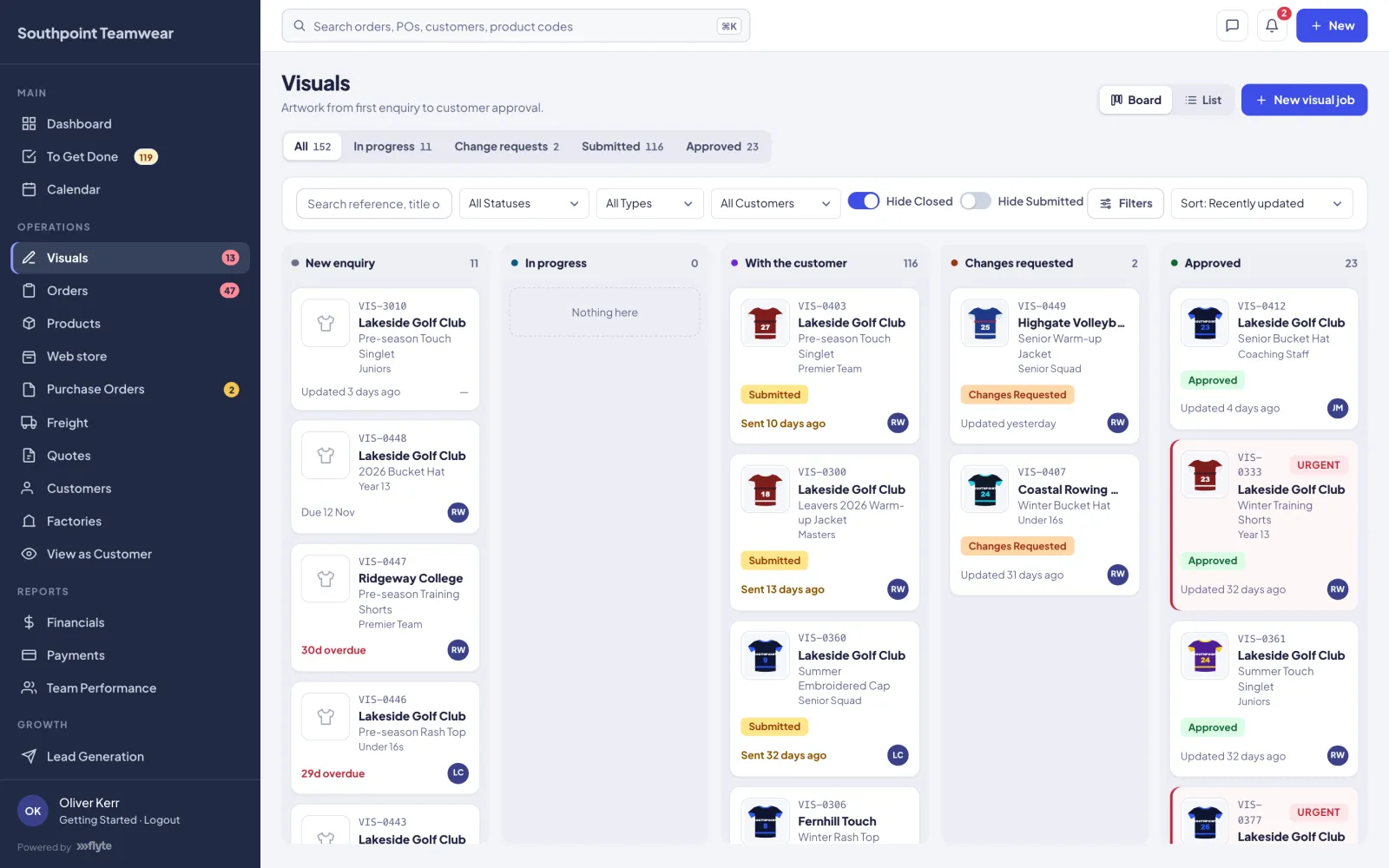
The designer builds the visual Your team
The assigned designer adds the products, front and back renders, logo placements and detailings, marks each product done, and presses Send for Approval. The link needs no login, on purpose, so it can be forwarded to the person who actually signs off.
-
3
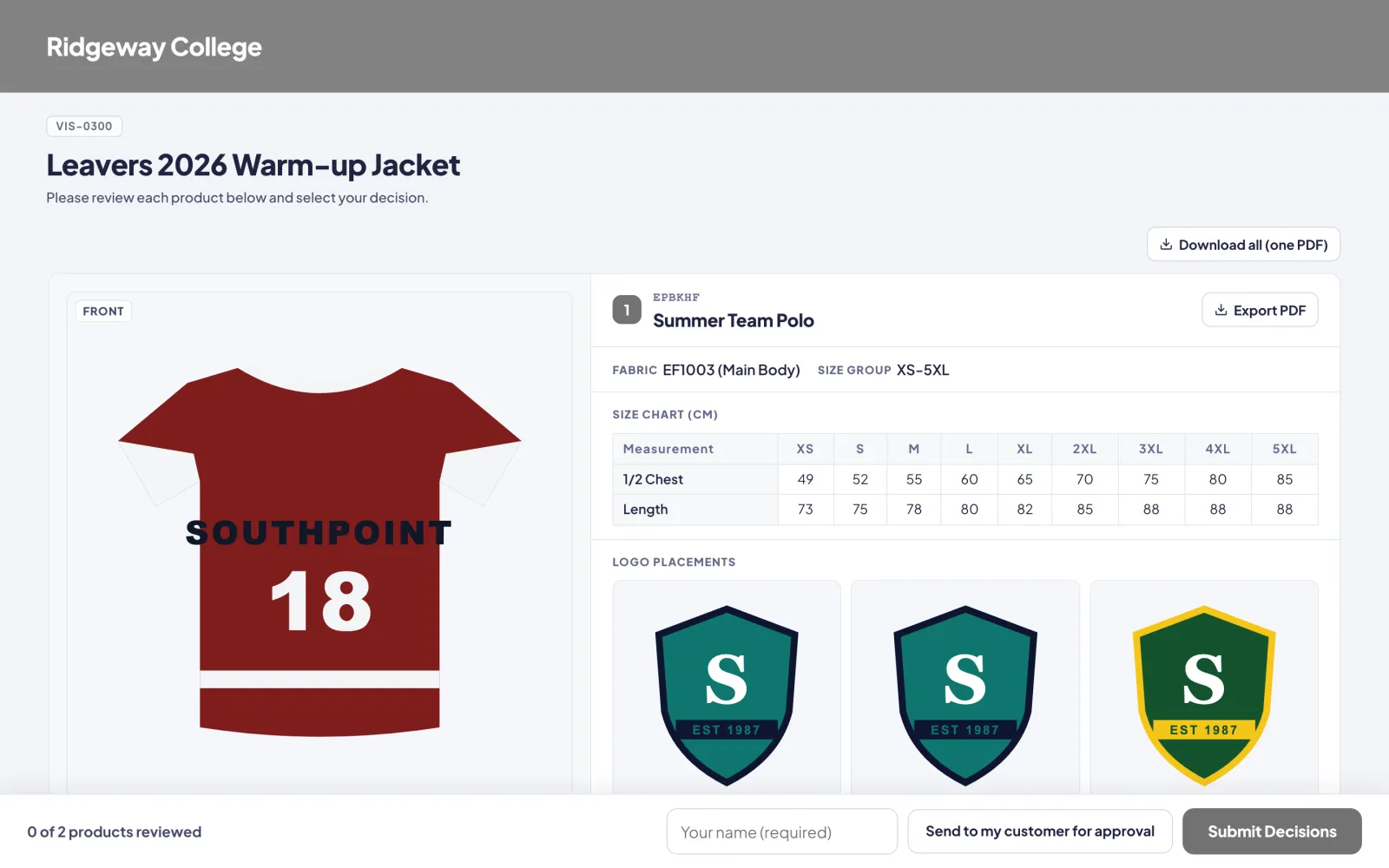
The customer decides, product by product Link page
For each product there are three decisions: Approve & Place Order (opens the size and quantity grid), Approve for Later, or Request Changes with a note. They can also Send to my customer for approval, which passes the visual on with no prices showing.
There are no half-orders.An order can only be placed once every product on the visual is approved. This stops a job being half in production and half still in design. Products approved for later stay approved and can be ordered together once the changes come back.
-
4
A draft order is created Automatic
If anything was approved with an order, Flyte raises a Draft order straight away, priced from your quantity breaks. Orders can also start without a visual: from the Locker Room, or with New order when a customer emails you their PO.
-
5
Your customer confirms Customer
The confirmation page is the commercial gate, and the only place four things are asked: their PO number, air or sea freight, the delivery address and the required-by date. It's also the last chance to change sizes and quantities before they lock. The page shows the earliest standard date — the longest lead time, plus freight transit, plus local delivery — and asking for sooner flags the order URGENT for your team.
-
6
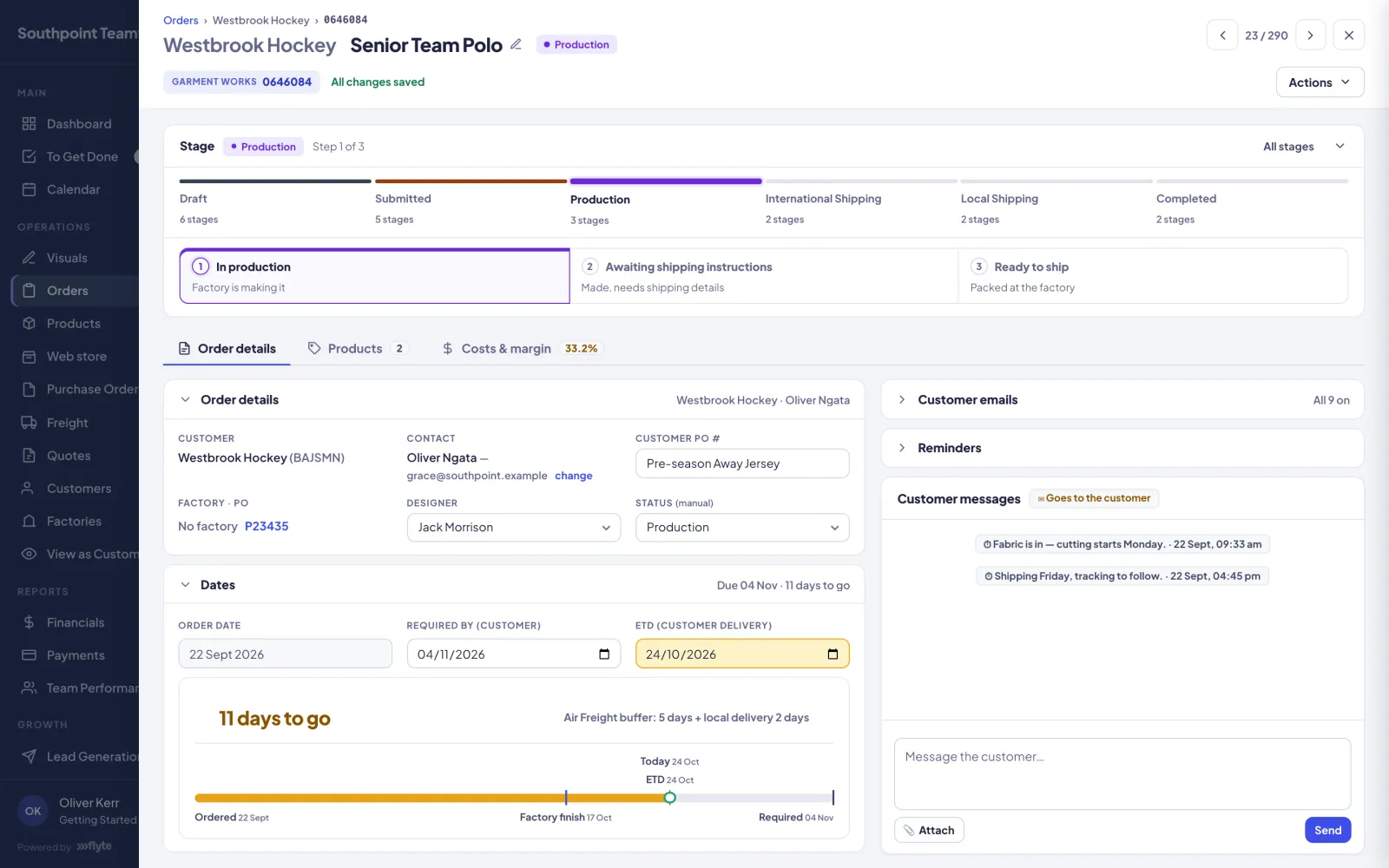
You check it and confirm it Your team
Check quantities, pricing and the delivery date, then press Confirm Order. An order can't be confirmed without an ETD, because this is the moment a promise is made to the customer. The confirmation email carries no pricing, so it can be forwarded on.
-
7
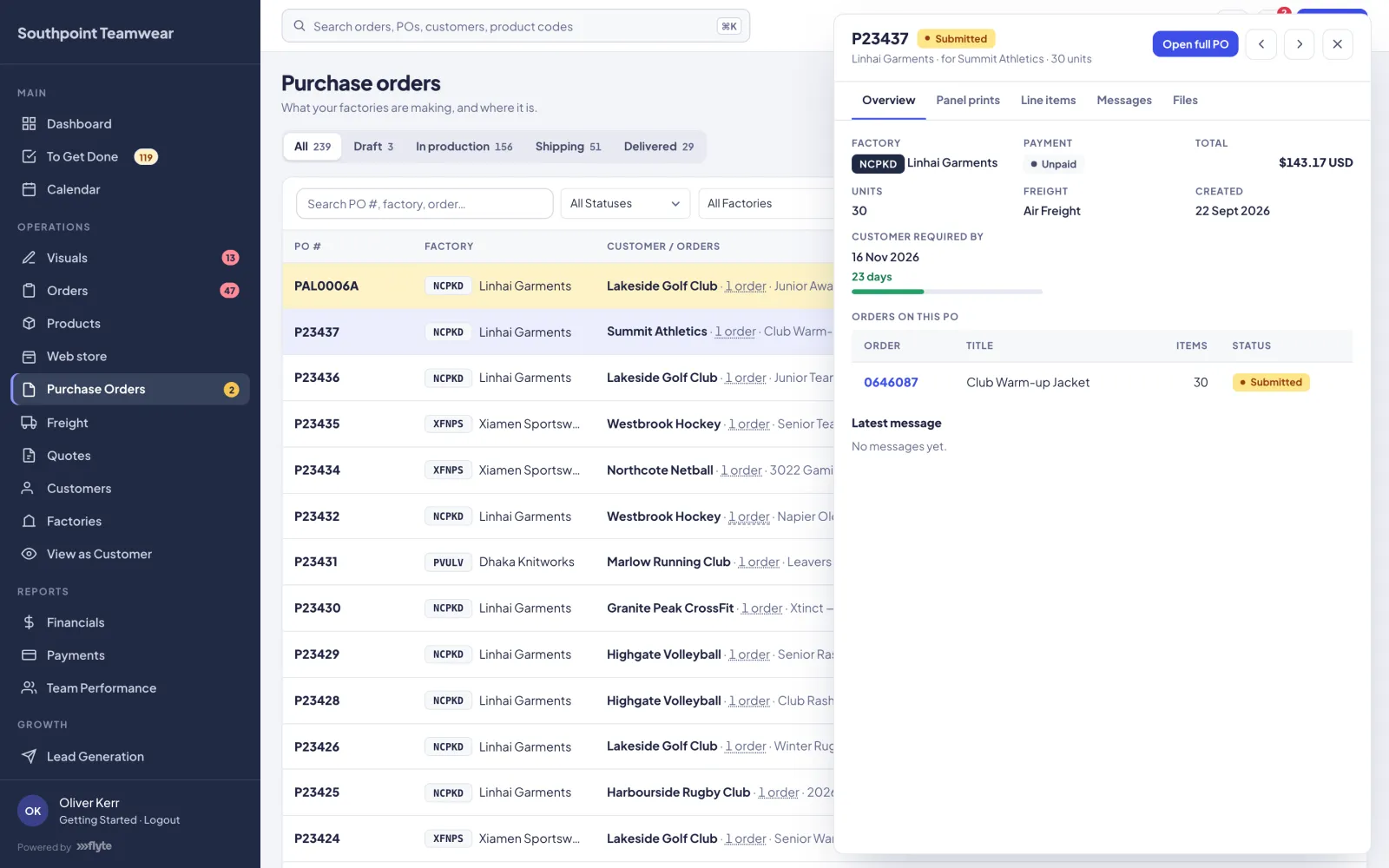
Raise the purchase order Your team
Tick confirmed orders and press Create PO from selected. Flyte groups the lines by factory, creates one PO per factory and prices them from the products' buy prices. Submit to Factory sends it: the PO appears in the factory's portal and they get it by email in English and Chinese, with the PDF attached. Draft POs are never visible to the factory.
-
8
The factory accepts Factory
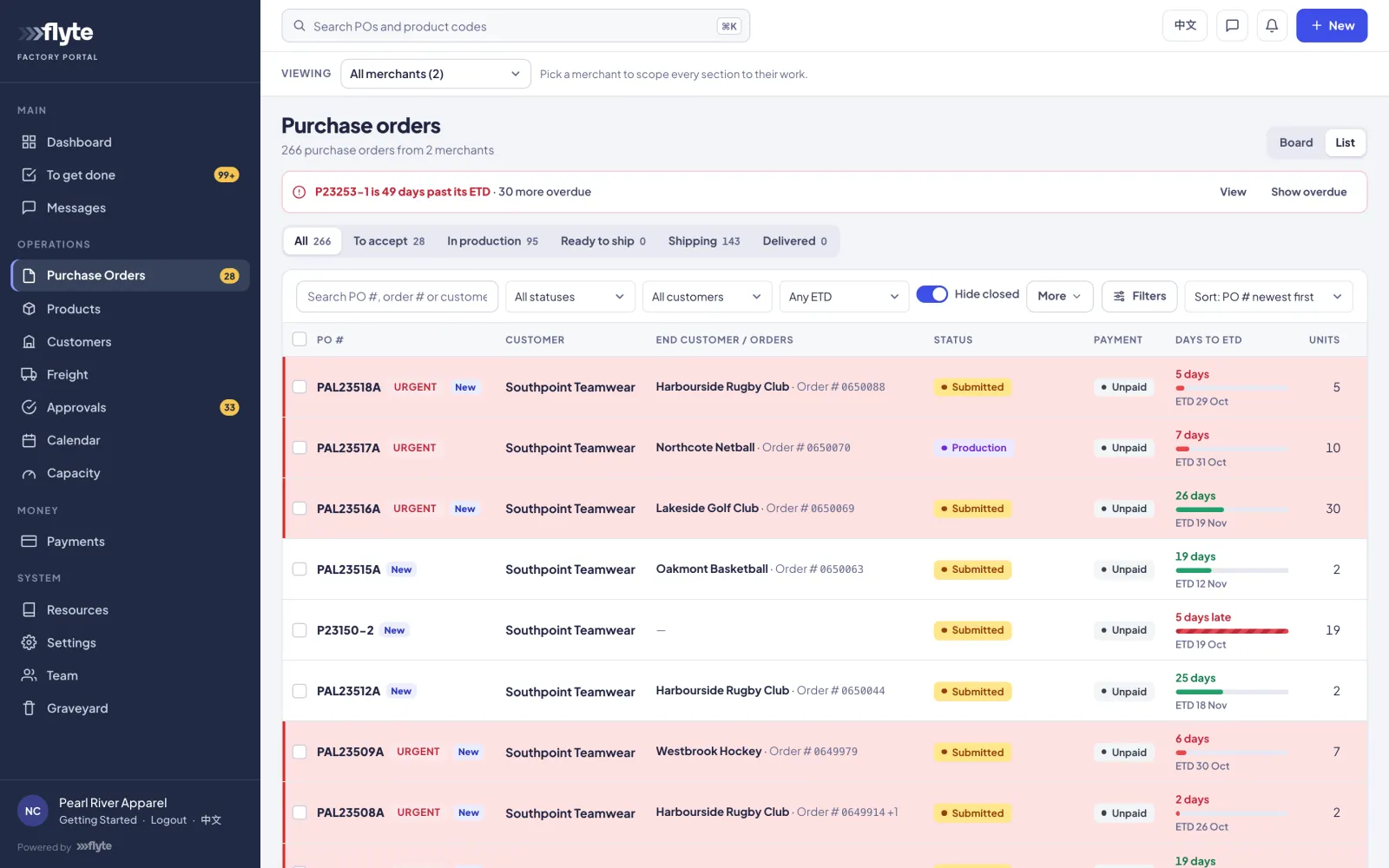
In their portal the factory presses Accept & start production, which needs an ETD; the PO moves to Production and the date flows onto the linked orders. Or they press Request changes with a reason, which lands in your Approvals until you edit and resubmit. Factories can't change prices directly: they propose, and you approve or reject.
-
9
Panel prints, before the full run FactoryYouCustomer
The factory photographs a sample of each product and submits the photos. You review them and send them on; the customer approves or requests changes per product. Once every product on an order is approved, or marked as a repeat needing no panel prints, the order moves to Production.
Some orders also need a full pre-production sample. The factory makes and ships one first, and bulk production doesn't start until the customer approves it.
-
10
Production complete Factory
The factory presses Production complete and the PO moves to Ready to Ship. Each linked order follows: Ready to Ship if it has a freight method, or Awaiting Shipping Instructions if the factory is waiting on you to set one.
-
11
It leaves the factory Your teamor factory
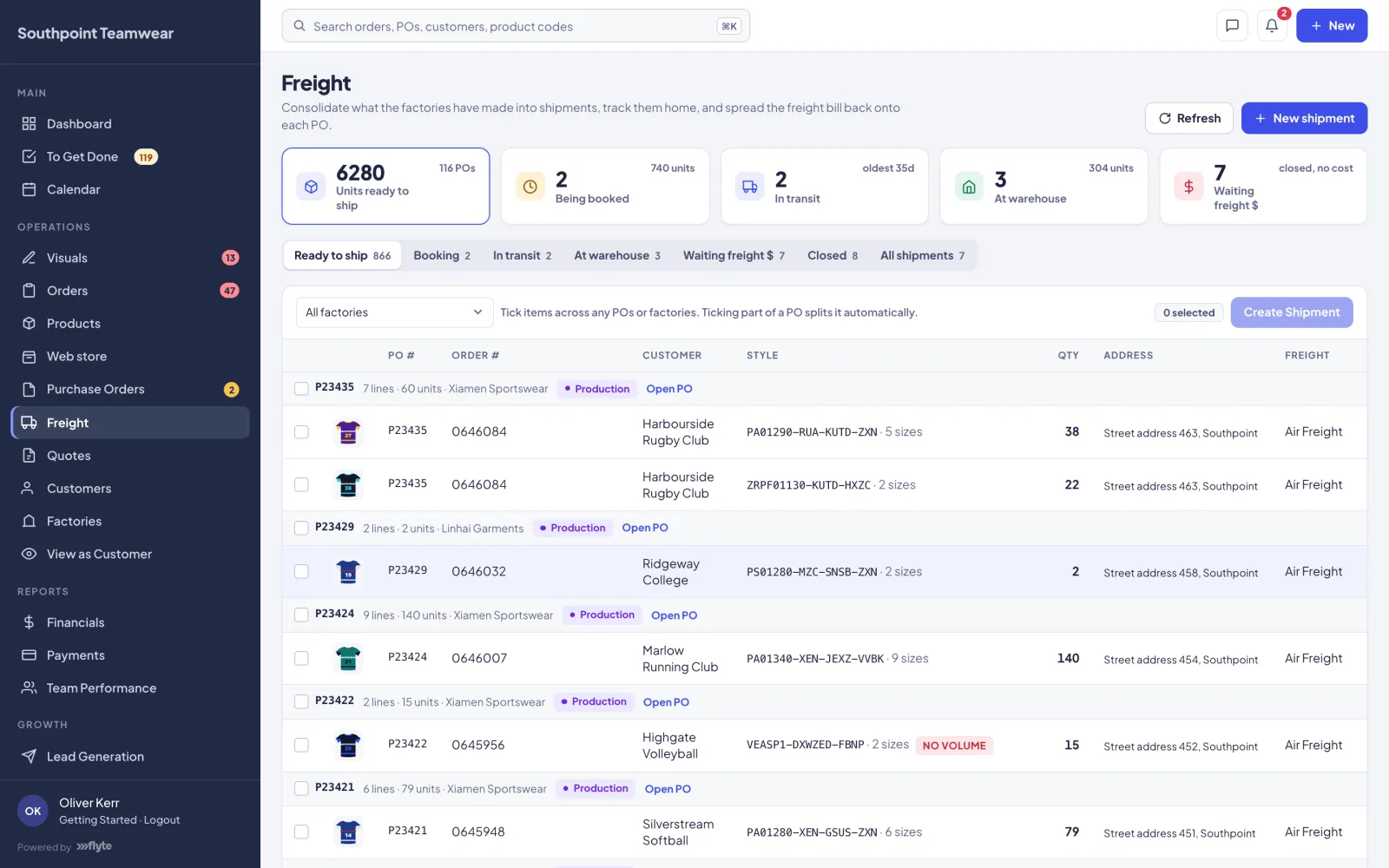
A shipment is built under Freight from the PO lines. Drafting a shipment isn't shipping: only when Ship now — left factory is pressed do the PO and its orders move to Shipping, and the customer is told, often with production photos.
-
12
At your warehouse Your team
Press Received at Warehouse. Orders on the shipment move to Received: arrived, being checked, waiting for local delivery. The PO moves to Delivered, because the factory's job is done, or Closed if it's already paid.
-
13
Out for delivery Your team
The last leg, from your warehouse to the customer. On accounts connected to Garment Works this happens automatically when the order is invoiced at packing, with an email per parcel if it goes in parts.
-
14
Delivered and closed Your team
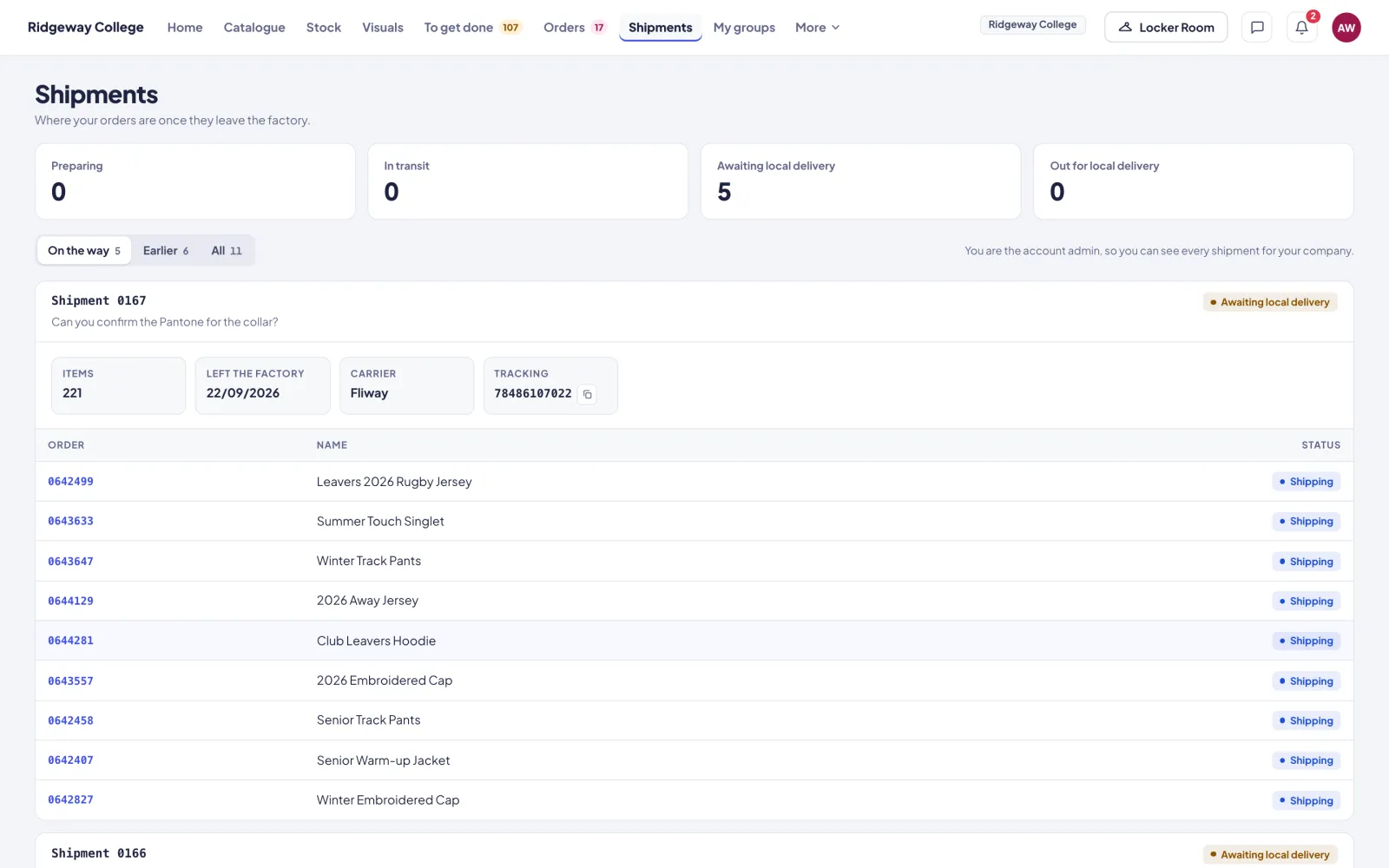
Your team marks the order Delivered. Closed means delivered and the PO paid in full.
Two journeys, not one
Freight is the international leg, factory to your warehouse: the air or sea choice made at confirmation. Local delivery is the last leg, warehouse to customer. A PO set to ship direct to the customer skips the local leg, and the delivery date the customer sees accounts for both.
Holds, at any stage
Your team can Put on hold an order with a reason, and the factory is told, so holding an order actually stops the work. Factories can put POs on hold too, and only they can release their own holds.
Want the details behind every stage?
The Knowledge Base walks through each one, screen by screen.