
Customer portal For your customers
Your customers order, approve and track. Under your brand.
Your customers get two things: a portal they sign in to, with your name, logo and colours on it, and link pages that arrive by email and need no login. Between them, your customer can do their whole part of a job without picking up the phone.
Signing in
Customers can't sign themselves up. Your team adds the people at each customer and sends them an invite to set their password, then they sign in at your portal's address, which carries your brand rather than Flyte's. A short tour runs the first time. Your team handles profile changes, password resets and adding people, so there's nothing for the customer to administer.
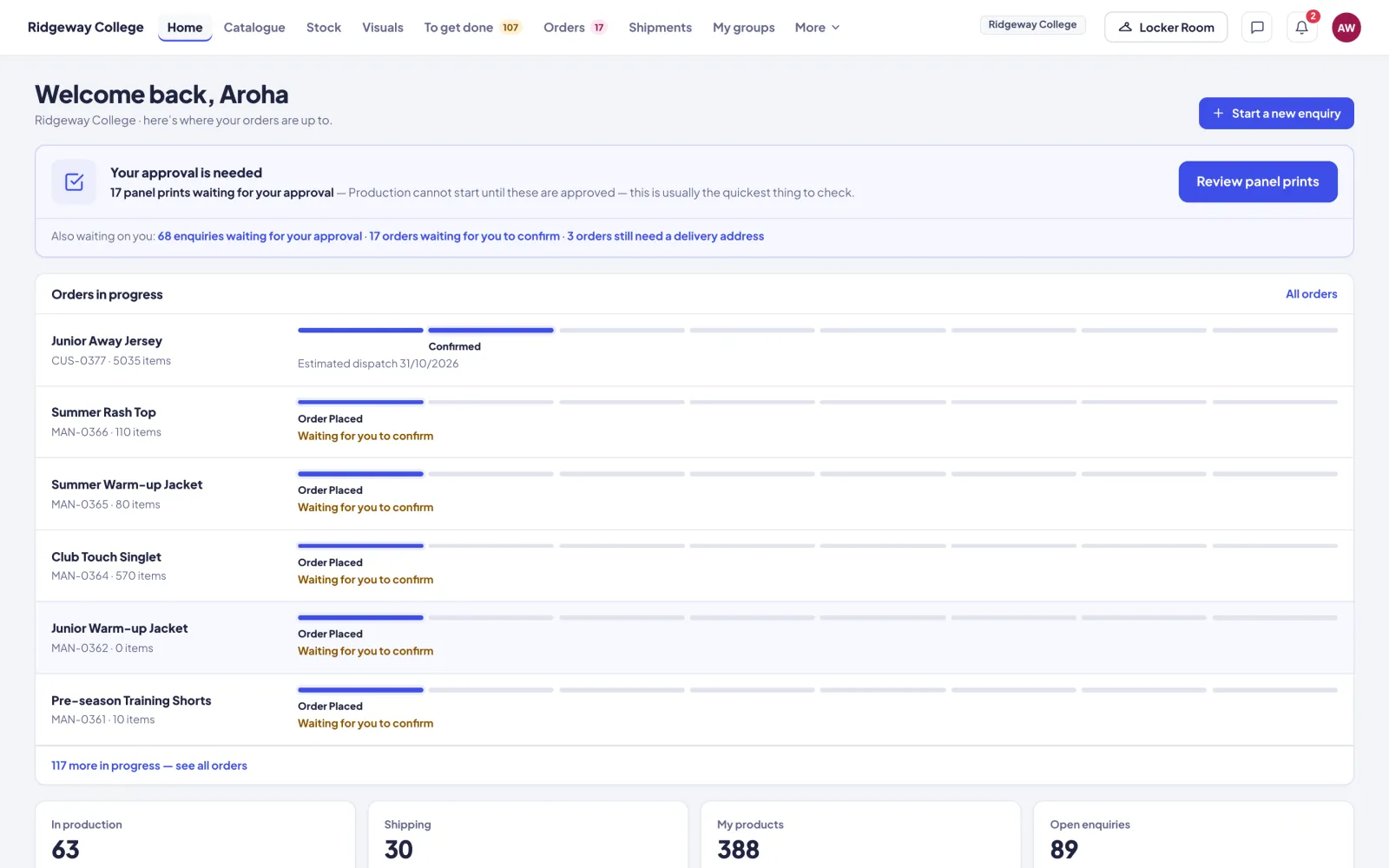
Home
What's waiting for them at the top, then every order in progress with its stage, and tiles for what's in production, shipping, their products and their open enquiries. A shared calendar shows what's coming up. Start a new enquiry is always one click away.
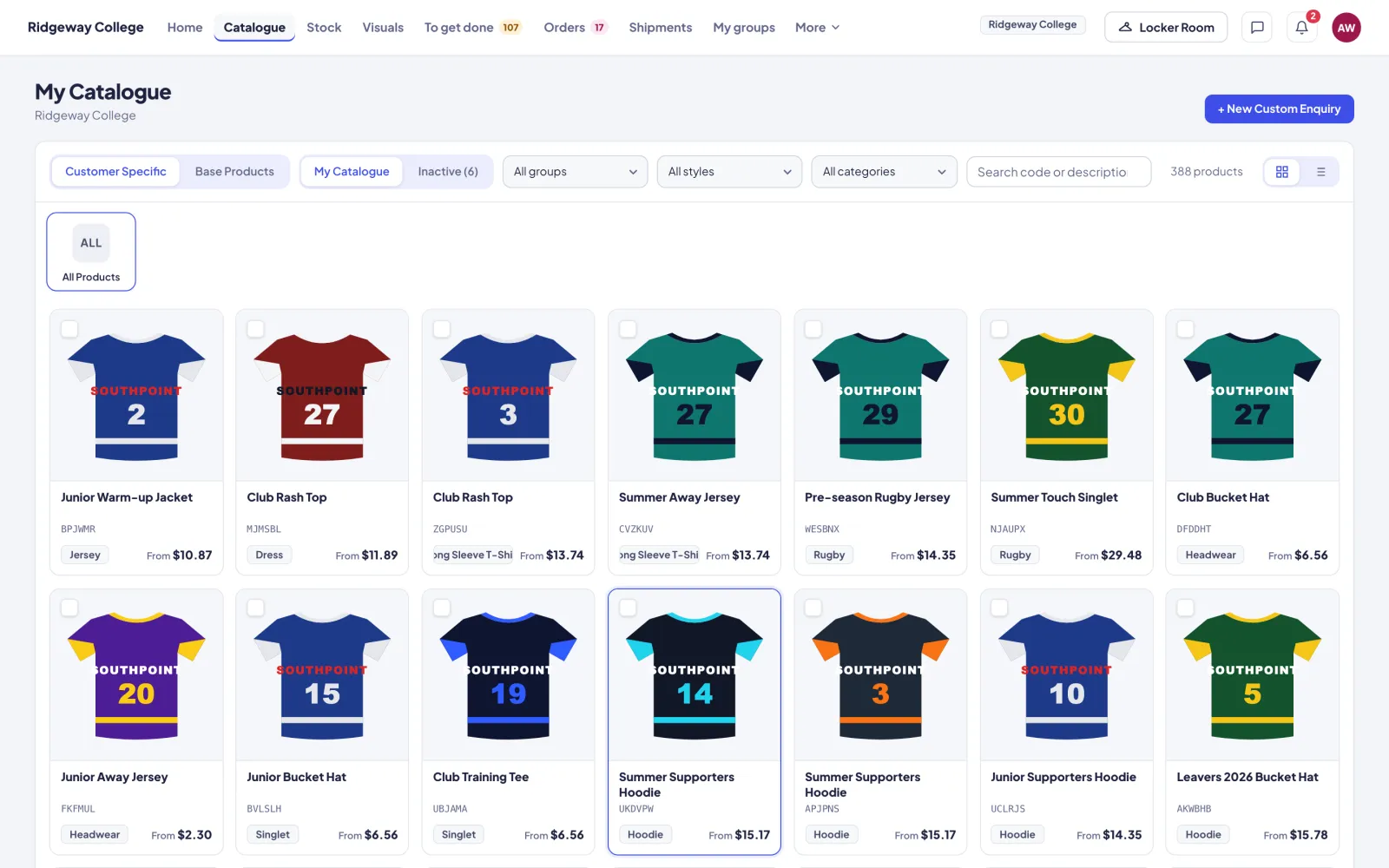
Catalogue & stock
Their Customer Specific products, filterable by group, range, style and category, and any Base Products you've given them access to. Each product opens with its images, colours, logos and detailings, sell price tiers, lead time, size chart and history. Their own products have Add to Order; base products have Start Enquiry. Products marked price on enquiry show Request a price instead.
Stock shows your vendors' off-the-shelf ranges with live colour and size stock. Under More they'll find the colour chart, fabrics and their detailings.
Locker Room
The basket in the top bar, with two parts: order items, priced by quantity tier with GST, and enquiry items, for things to be designed. They choose a freight method, a date required (the earliest standard date unless they flag it urgent), their PO or reference and an order name, then submit. Order items become a draft order; enquiry items become a visual job for your designers.
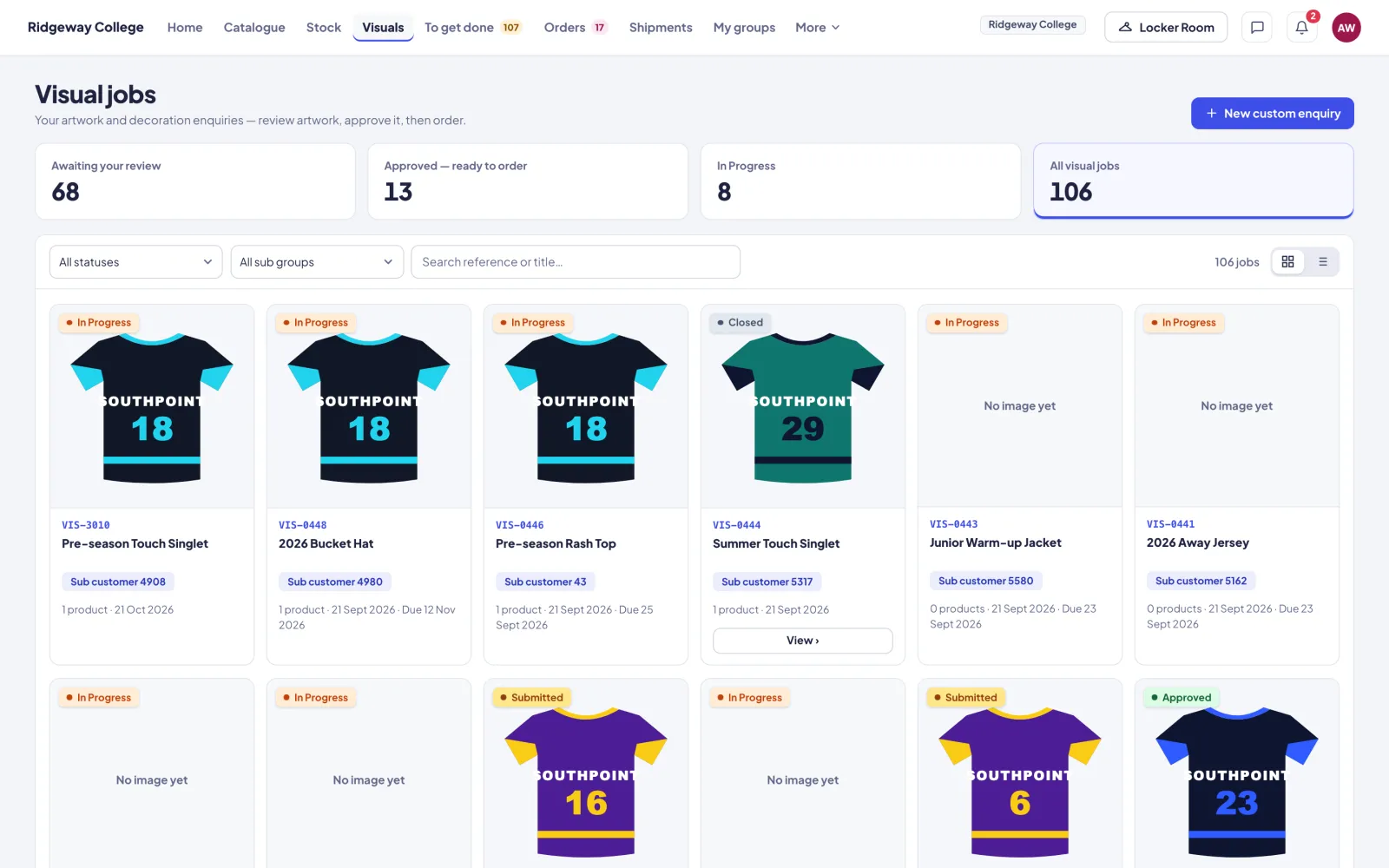
Visuals
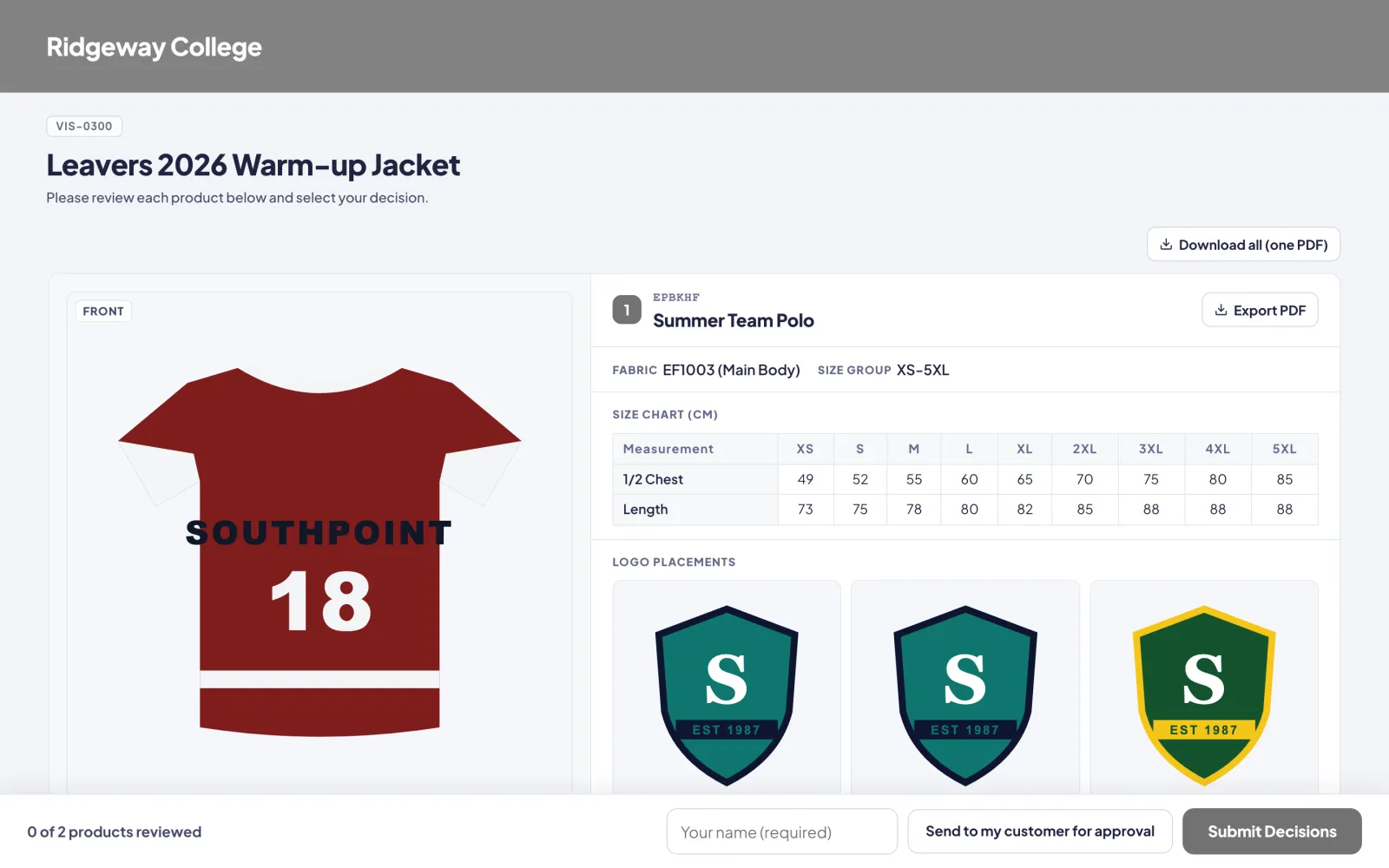
Every enquiry and its status, with the next action on each: Review, Place order or View. They see their artwork product by product, and can send a visual on to their own customer for approval.
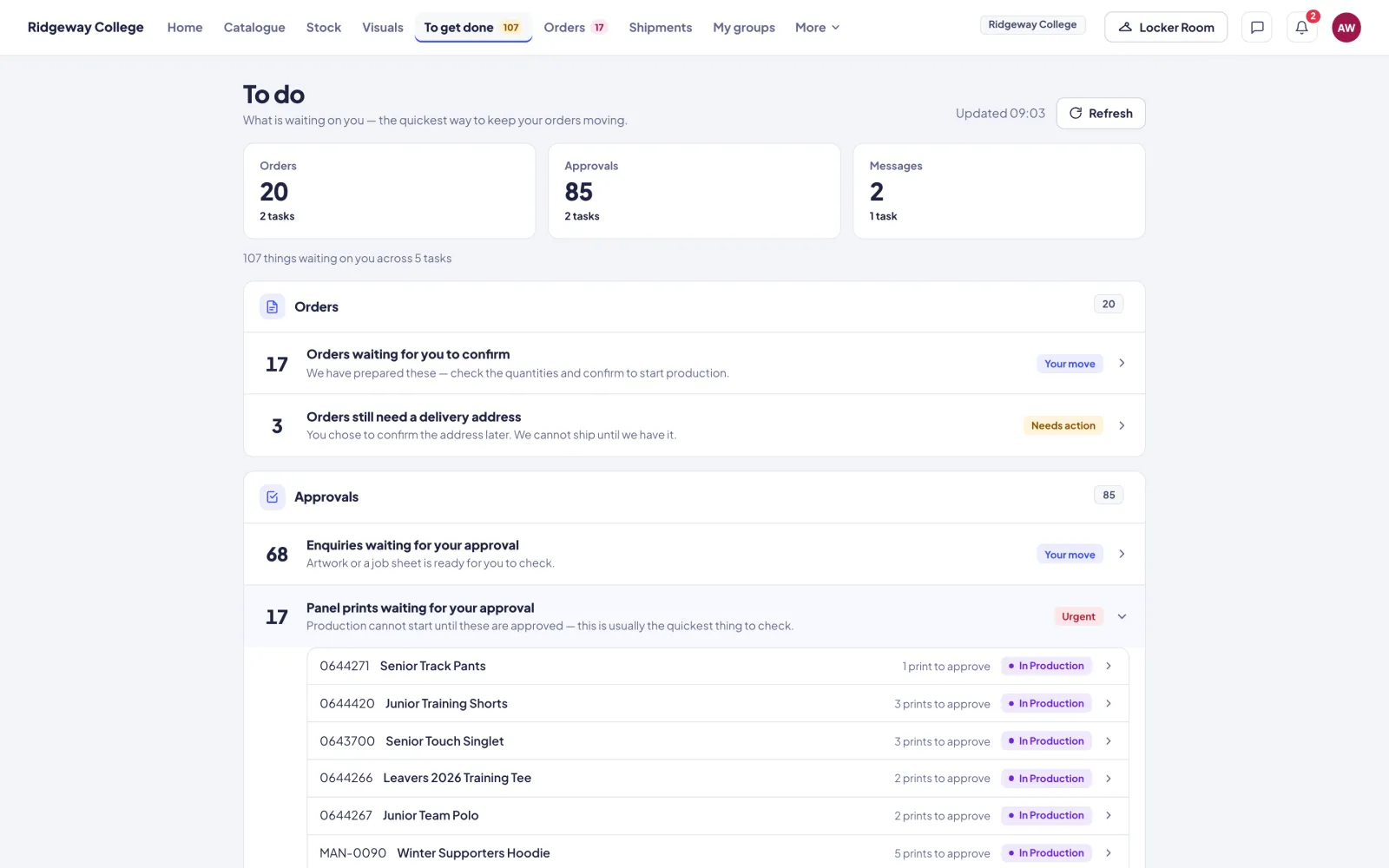
To get done
Everything waiting on them, in one list: orders to confirm, orders needing a delivery address, enquiries to approve and panel prints to sign off, with the urgent ones tagged.
Orders
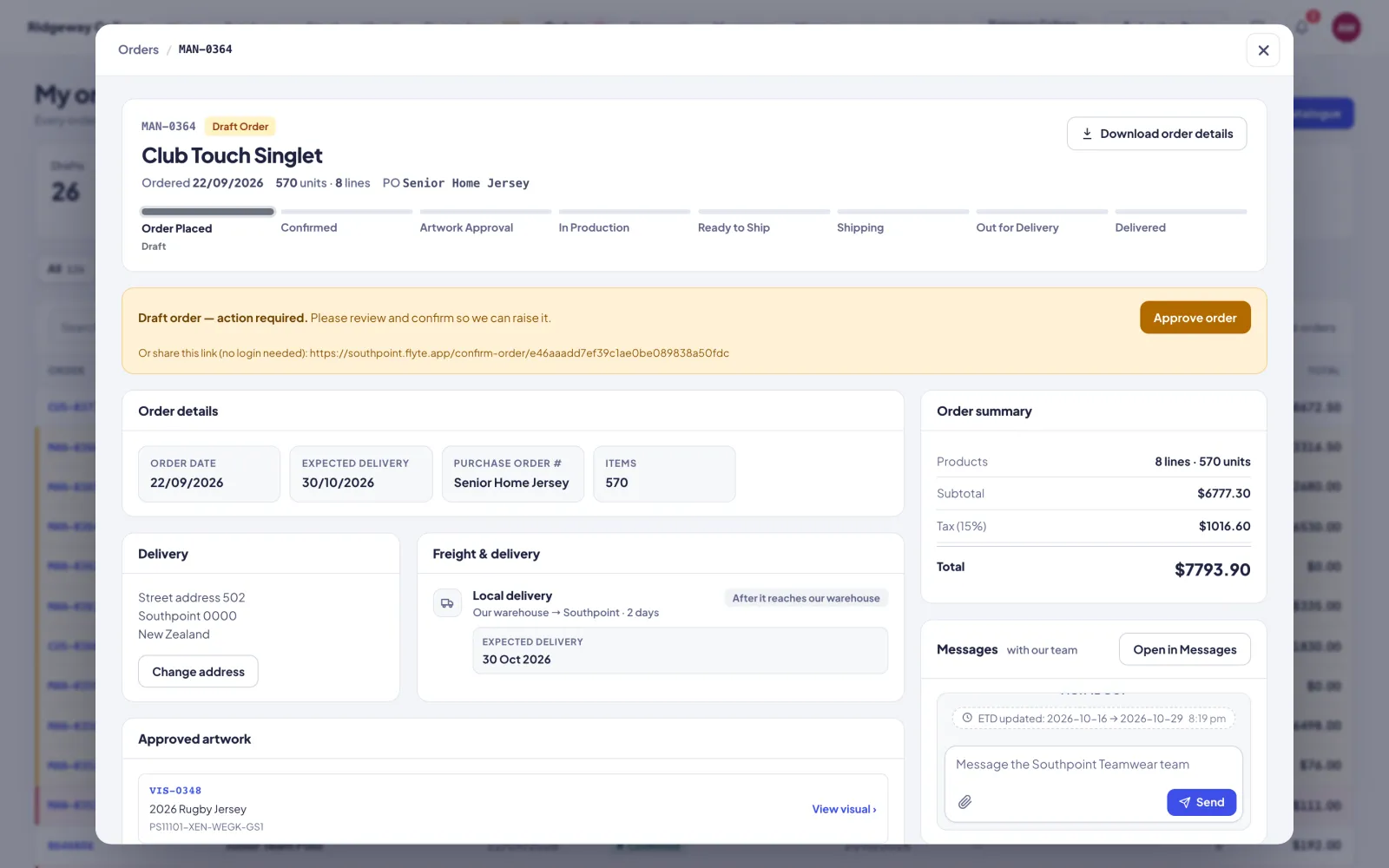
Every order with its number, name, status, estimated dispatch, tracking, items and total. Each order opens with a stage tracker from Order Placed to Delivered, Approve order on drafts, the approved artwork, a summary with GST, Download Order Details, Change address, and the order's conversation with your team.
Shipments
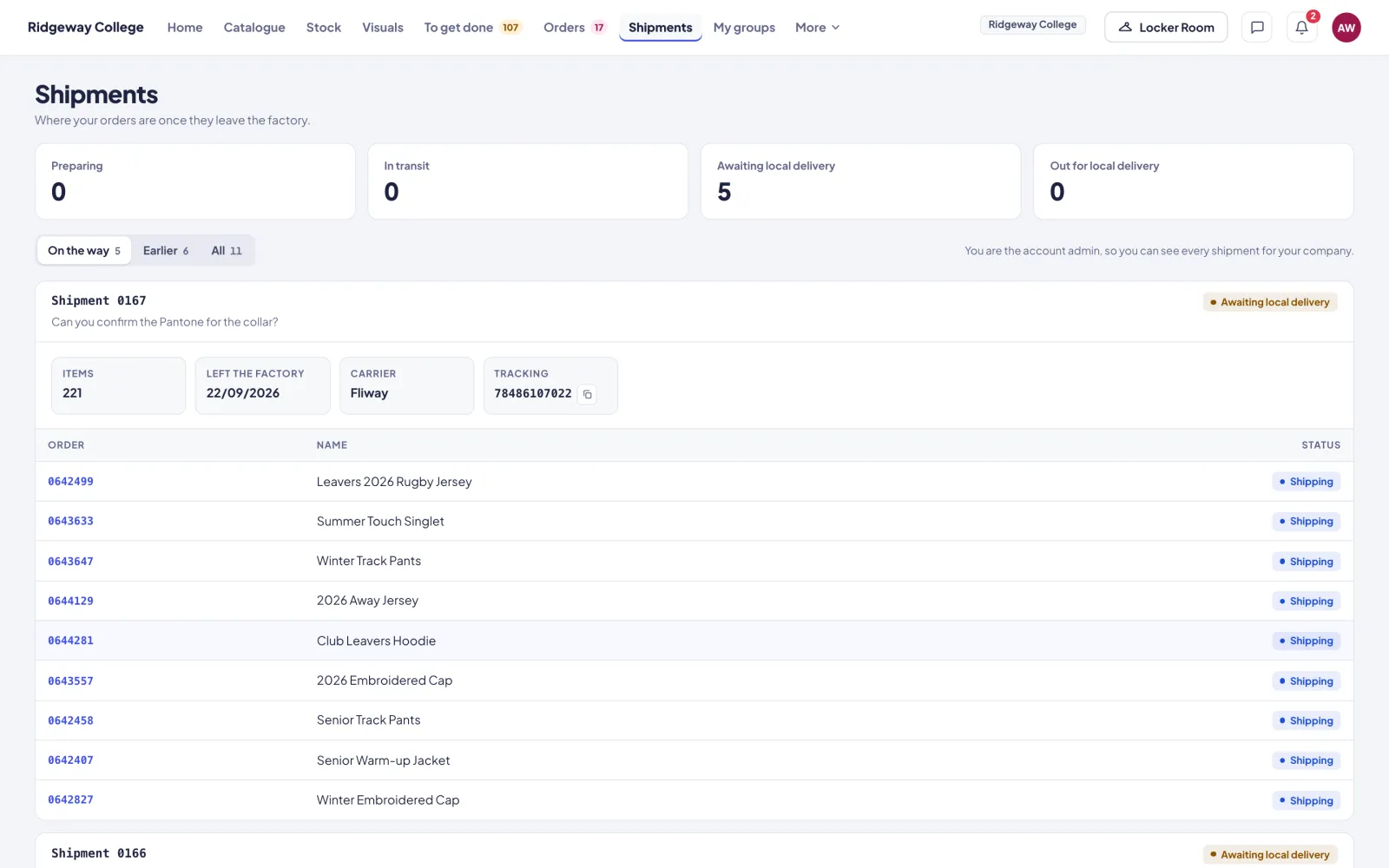
What has left the factory, with the stage, quantities, carrier and tracking for each shipment, across both legs of the journey: freight from the factory, then local delivery. No costs are shown.
Messages
Customers talk to your team about any order, with files and photos, and keep on top of everything through the notification bell and emails. On accounts where it's switched on, customers can also ask Flyte, the assistant, about the portal and their own orders.
My groups
Big customers are often many teams under one account. Each customer has an account admin who sees everything and can manage their sub groups: who belongs to each, and each group's logo, delivery address and more. Other people see the enquiries for the groups they're in.
Link pages
These arrive by email, need no login, and can be forwarded to whoever actually signs off.
| Page | What the customer does |
|---|---|
| Visual approval | Per product: Request Changes, Approve for Later, or Approve & Place Order with sizes and quantities |
| Order confirmation | Adds their PO number, delivery address, freight method and date required, then confirms. One use only. |
| Production approval | Approves or requests changes on the factory's panel-print photos, per product |
| Pre-production sample | Approves and starts bulk, approves with changes, or asks for another sample |
| Job sheet | Approves the production job sheet, or requests changes |
| Quote | Chooses a quantity break, then accepts or declines before it expires |
Who sees what
Customers see sell prices, their own products, orders and shipments. They never see buy prices, factory names or your internal notes. Orders, products and the calendar are shared with everyone at the customer; visual jobs are shown per person, by the groups they're in.
Your brand, and theirs
The portal, the link pages and every email carry your company's name and logo. Give each customer their own logo and brand colour too, and the approval pages and emails they forward carry their brand, so they can send them straight to their own customers.
Guides to send your customers.
The Knowledge Base has a section written for your customers: approvals, confirming orders, tracking and more.