
Factory portal For factories · 工厂
Every merchant's purchase orders, in one portal.
The factory portal is where you receive purchase orders from the companies you make for. You accept them, send production photos, ship the goods and ask to be paid, in English or Chinese. In the portal, each company you work with is called a merchant.
Free for factories. No monthly fee, no annual fee, no set-up fee.
Signing in
The company you make for invites you by email, in English and Chinese. Click the link to set your password (it works once, for 7 days), then sign in to the factory portal with your email or factory code and your password. A short Getting Started tour runs the first time, in English and Chinese.
There's no reset button on the sign-in page. Ask your factory's owner or an admin to press Send password link for you on the Team page, or ask the company that invited you to send the invite again.
One login, many merchants
If a second company invites the same email address, you keep the same login and password, and their work appears next to the first company's. Use the Viewing selector to show one merchant's work everywhere at once: POs, products, freight, messages, approvals, the calendar and capacity.
Each company sees only its own POs and its own messages with you. Nothing you do for one company is shown to another.
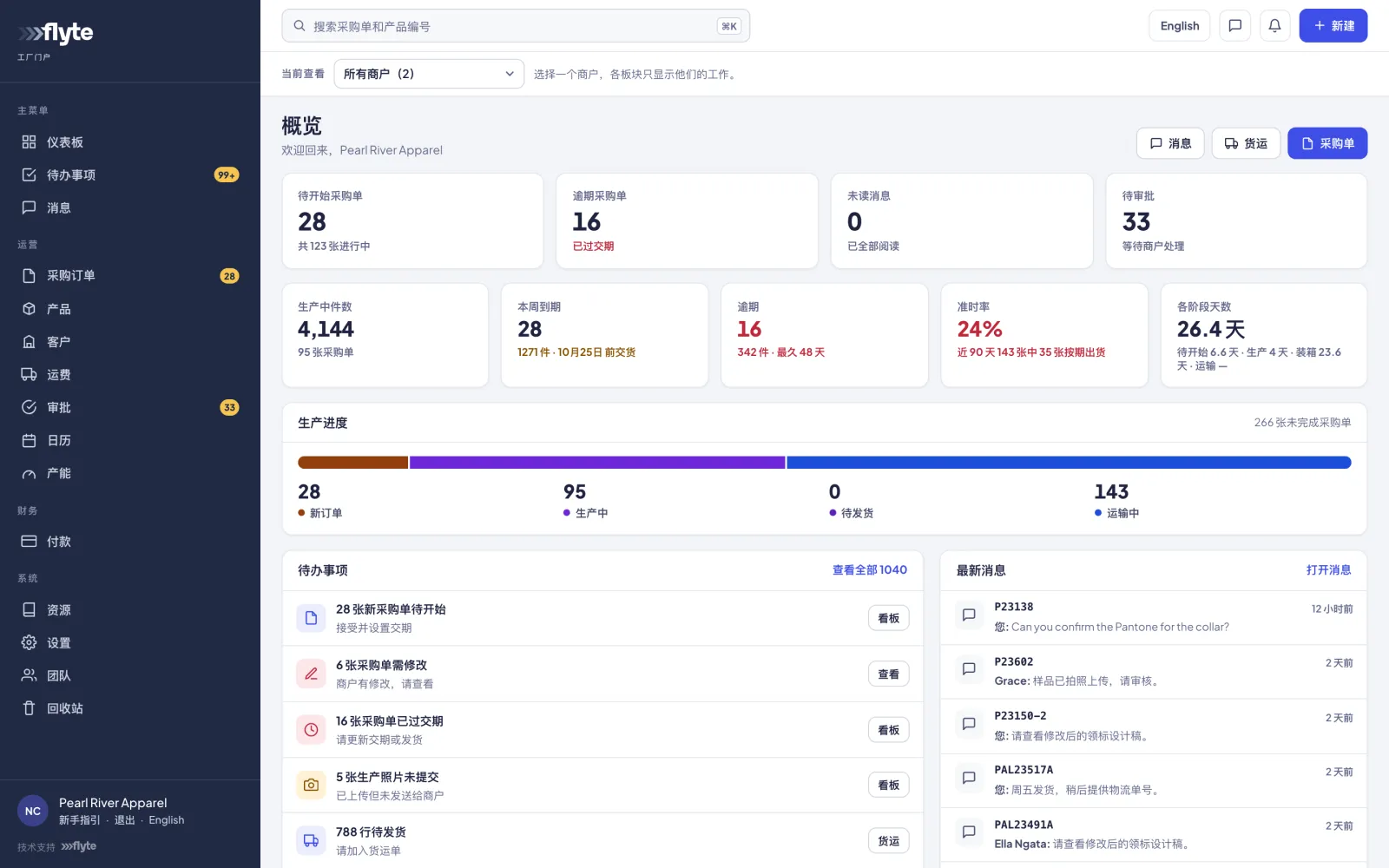
English & 中文
One switch in the top bar changes the whole portal between English and Chinese. The New Purchase Order email arrives in both languages with the PO PDF attached.
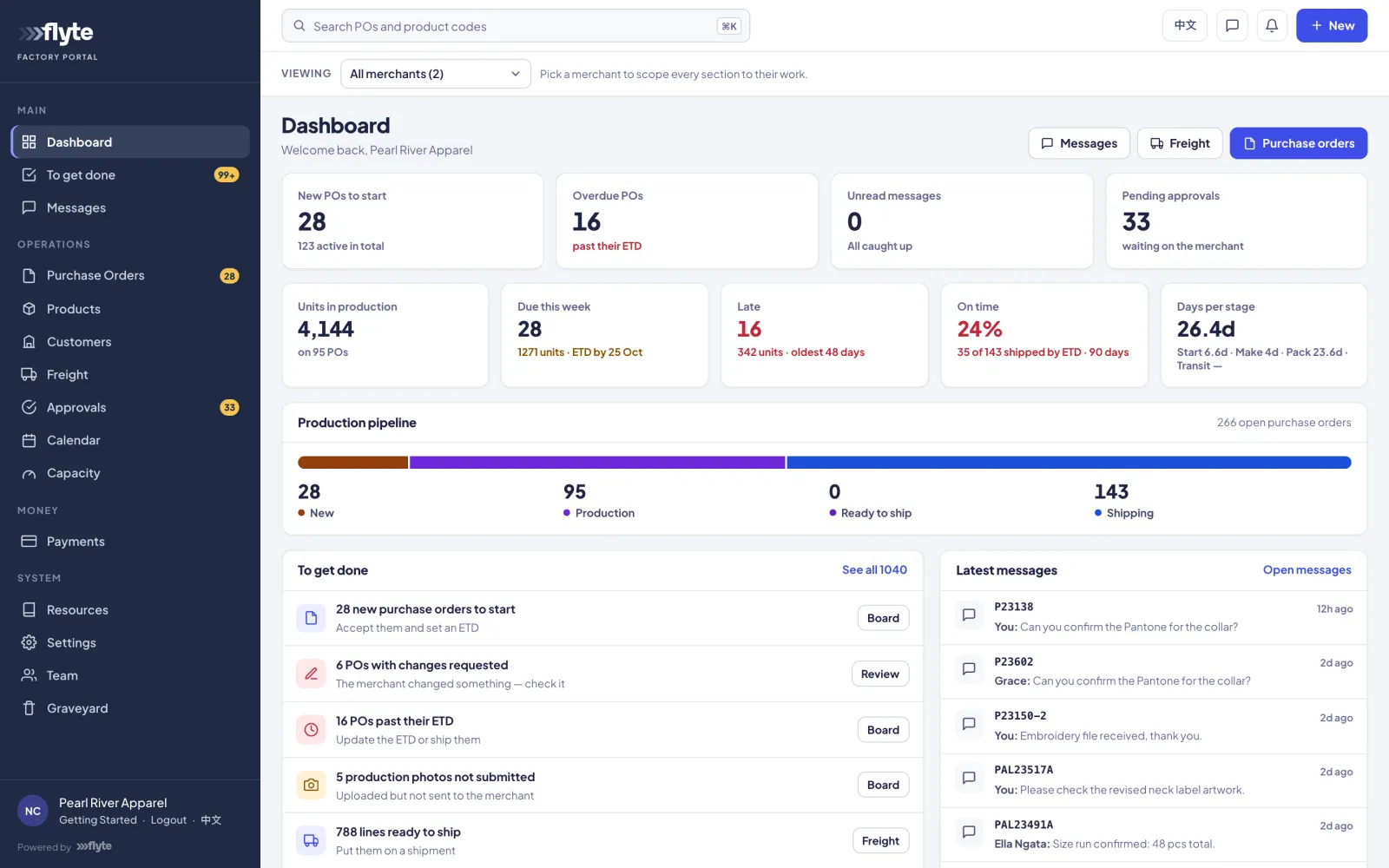
Dashboard & To get done
To get done lists every task waiting on your factory, and is the best place to start each day. The Dashboard shows production at a glance: new POs to start, overdue POs, unread messages, pending approvals, units in production, what's due this week and your on-time rate.
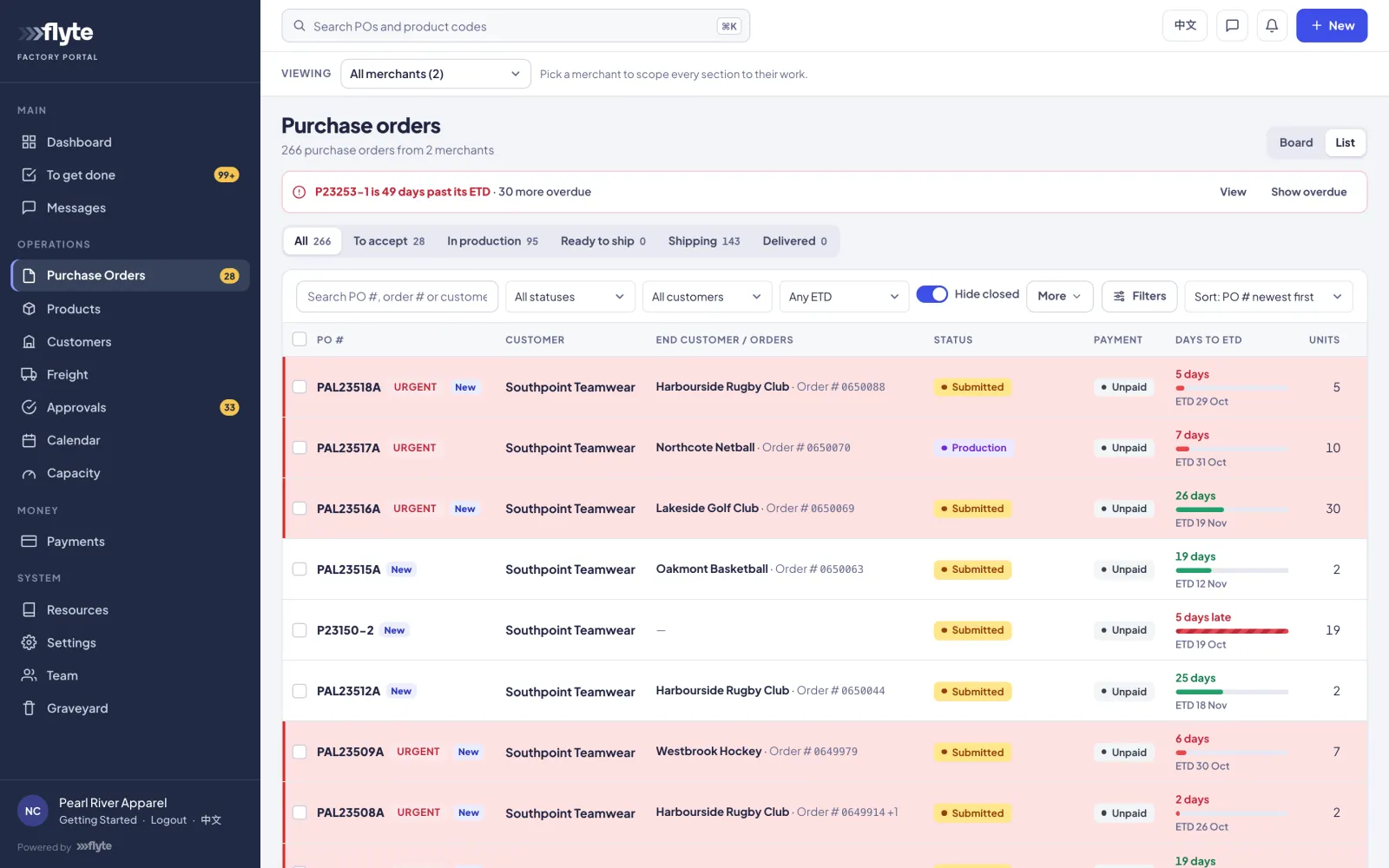
Purchase Orders
Find, filter and sort your POs as a list or a board, and act on many at once. Each PO opens with its stage, dates and delivery details, then every product: the size grid, artwork, logos, detailings, size chart and files. Buy prices are shown in your own currency.
Accepting & statuses
Set the ETD and press Accept & start production, or Request changes with a reason and wait for the merchant to resubmit. When the goods are made, press Production complete. Every status is shared with the merchant the moment it changes, so nobody needs to chase you for an update.
A merchant can put a PO on hold, which pauses work; you can put a PO on hold yourself, and only you can release your own hold.
Proposing changes
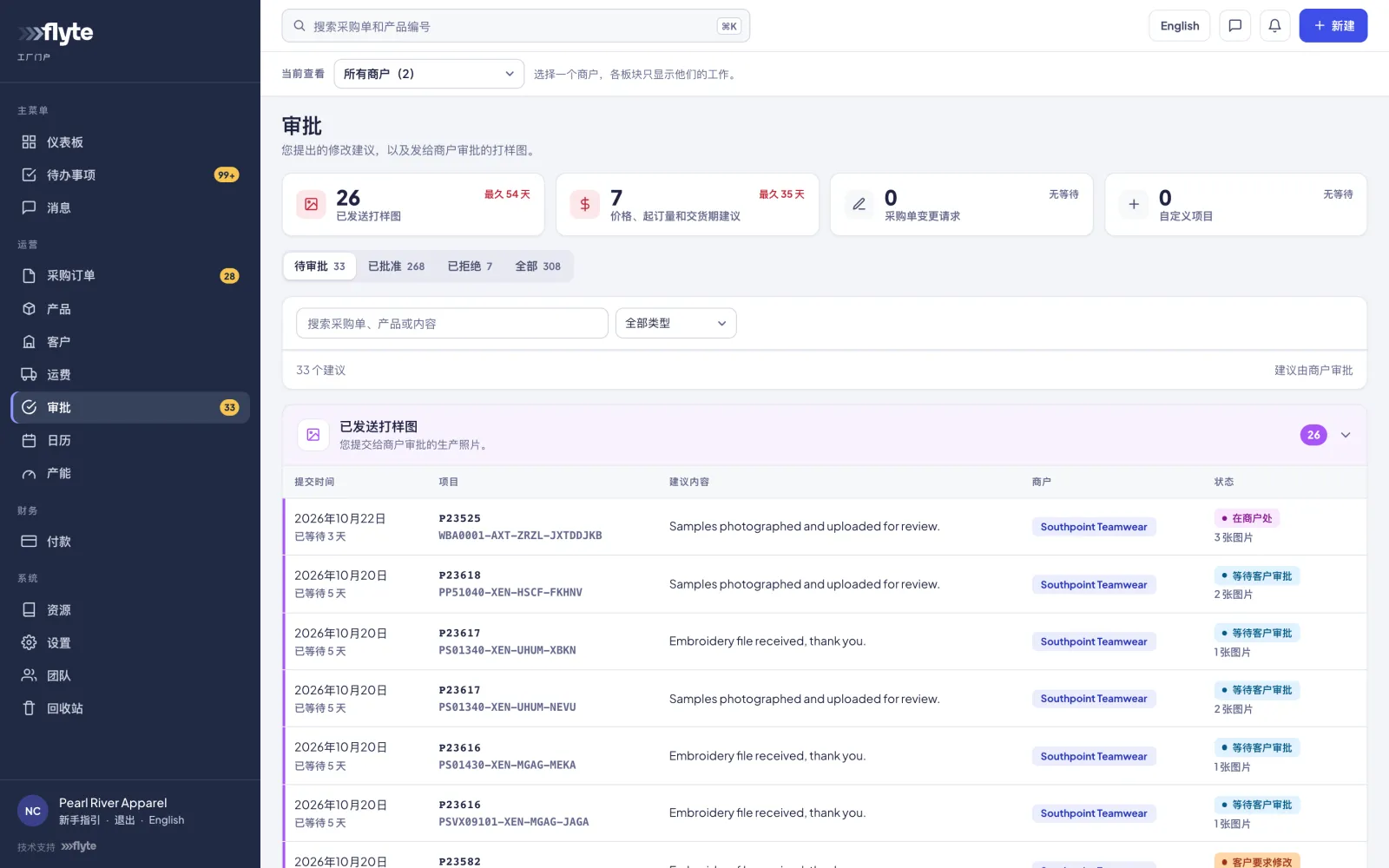
Ask the merchant to change a product, a price, the MOQ or the lead time, or add an extra charge as a custom item. Nothing changes until they approve it, and you can see every proposal and its decision under Approvals. You can also answer date requests: a merchant asking whether you can make products by a certain date, before they send the order.
Production photos & samples
Upload and submit panel-print photos for approval before the full run, resubmit after changes, mark repeat orders that need none, and add finished-garment photos. When a PO needs a pre-production sample, make and ship it first: bulk production waits for the customer's approval.
Freight
Pack finished goods into shipments, add the carrier, tracking and documents, and press Ship now when the goods leave. The merchant and their customer are told.
Capacity & calendar
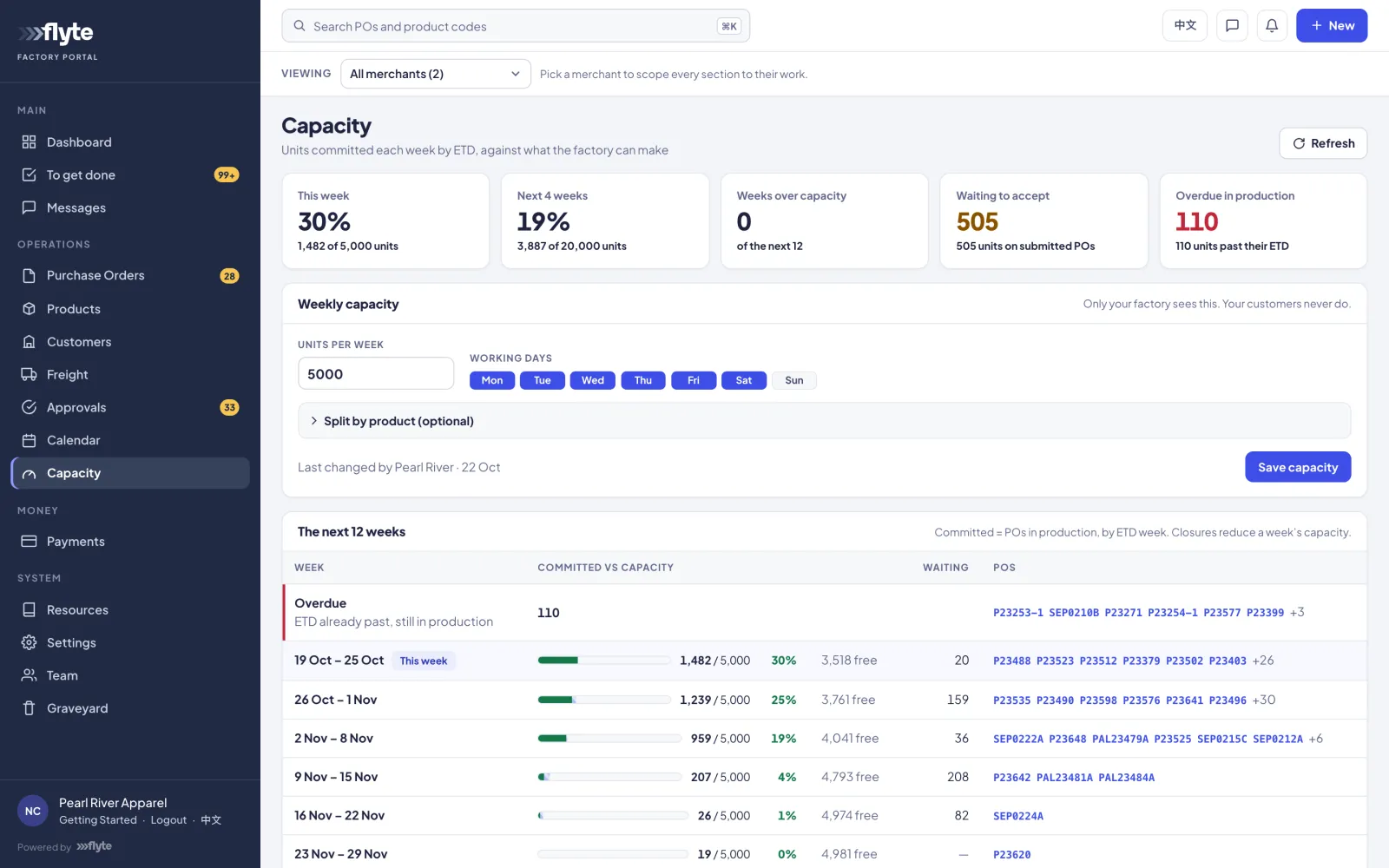
Set how many units your factory can make each week and see a 12-week plan of committed work against that capacity, so you spot an overloaded week before you accept it. Capacity is only visible to your factory. Put closures and holidays on the calendar and every company you make for can see them coming.
Messages
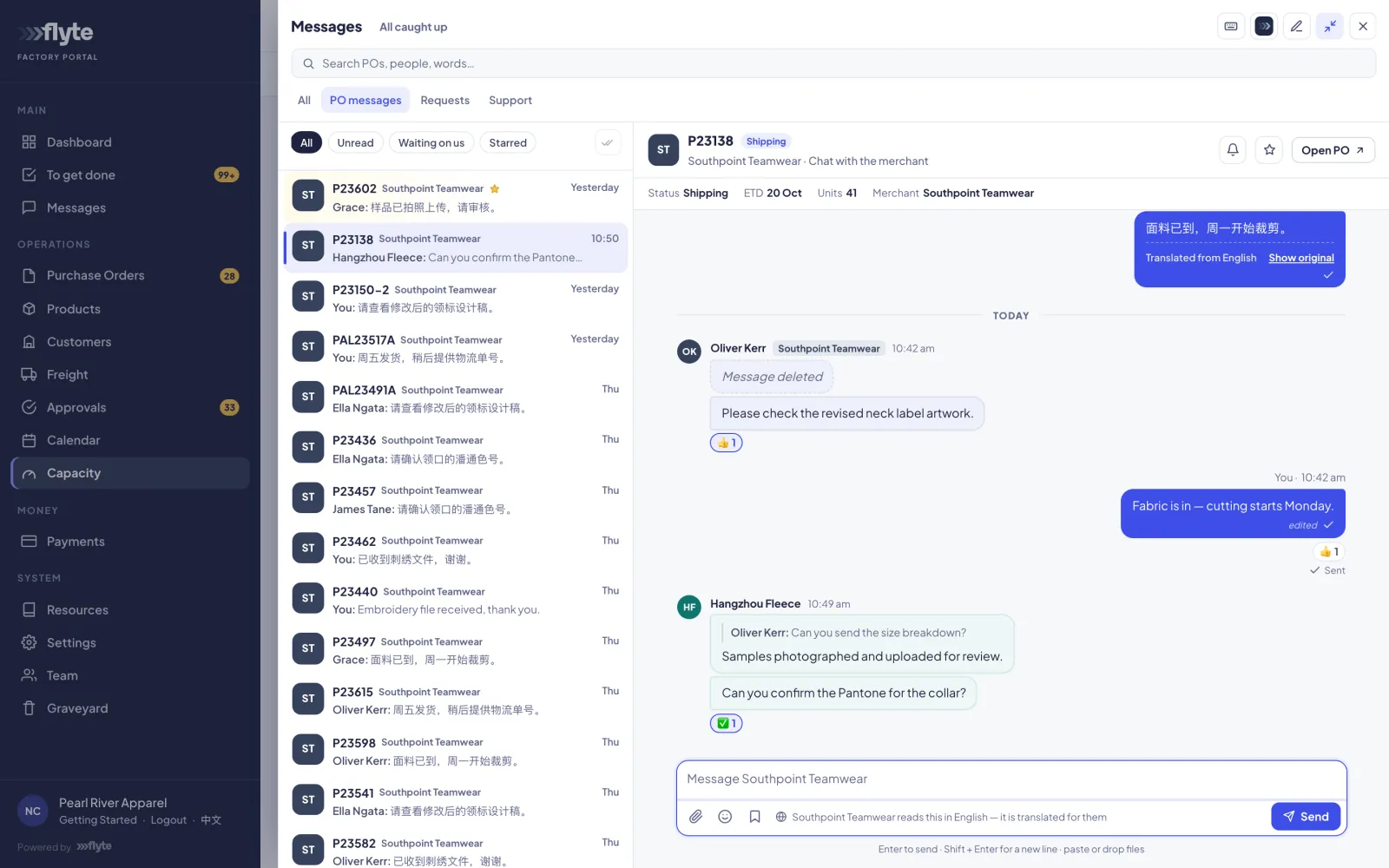
A conversation for each PO, with saved replies, stars and mute, and support tickets about the portal itself. If translation is switched on for your account, PO messages are translated between Chinese and English automatically: you write in Chinese, the merchant reads English, and the original is always one click away.
Payments
Group shipped POs into a payment request, add an invoice reference or bank details, and send it to the merchant to check. Follow it from sent to approved to paid; each PO shows Unpaid, Partial or Paid. The merchant records the actual payment, so you always see where your money is.
Team & permissions
Factory owners and admins add colleagues, choose which pages each person can open, control their emails, and send password links. Give merchandisers, production and accounts their own logins: a personal login can do more than a shared factory-code login, such as private reminders.
Joining & referrals
If a company you make for already uses Flyte, they can invite you. If not, get in touch and we'll help bring them on. Factories can also refer the merchants they make for: when a referred merchant becomes a paying Flyte customer, the factory earns a referral commission, on terms set out in a referral agreement.
Guides for your factory.
Step-by-step factory guides in the Knowledge Base: accepting POs, photos, samples, shipping and payment.